How to Export a YouTube Playlist to Excel (.xlsx) with Working Hyperlinks
Published on: 2nd November, 2026How to Export Any YouTube Playlist to Excel in 3 Steps
If you need your Excel file right now with working clickable links and clean formatting, here is the fastest way to get it:
- Step 1: Copy your YouTube or YouTube Music playlist link (make sure the playlist privacy is set to Public or Unlisted).
- Step 2: Open our free YouTube Playlist Exporter.
- Step 3: Paste the link into the search box, check the Excel (.xlsx) option, pick any specific columns you want (like views, duration, likes, or upload dates), and click Export. Your Excel spreadsheet downloads straight to your computer or phone with active hyperlinks ready to use.
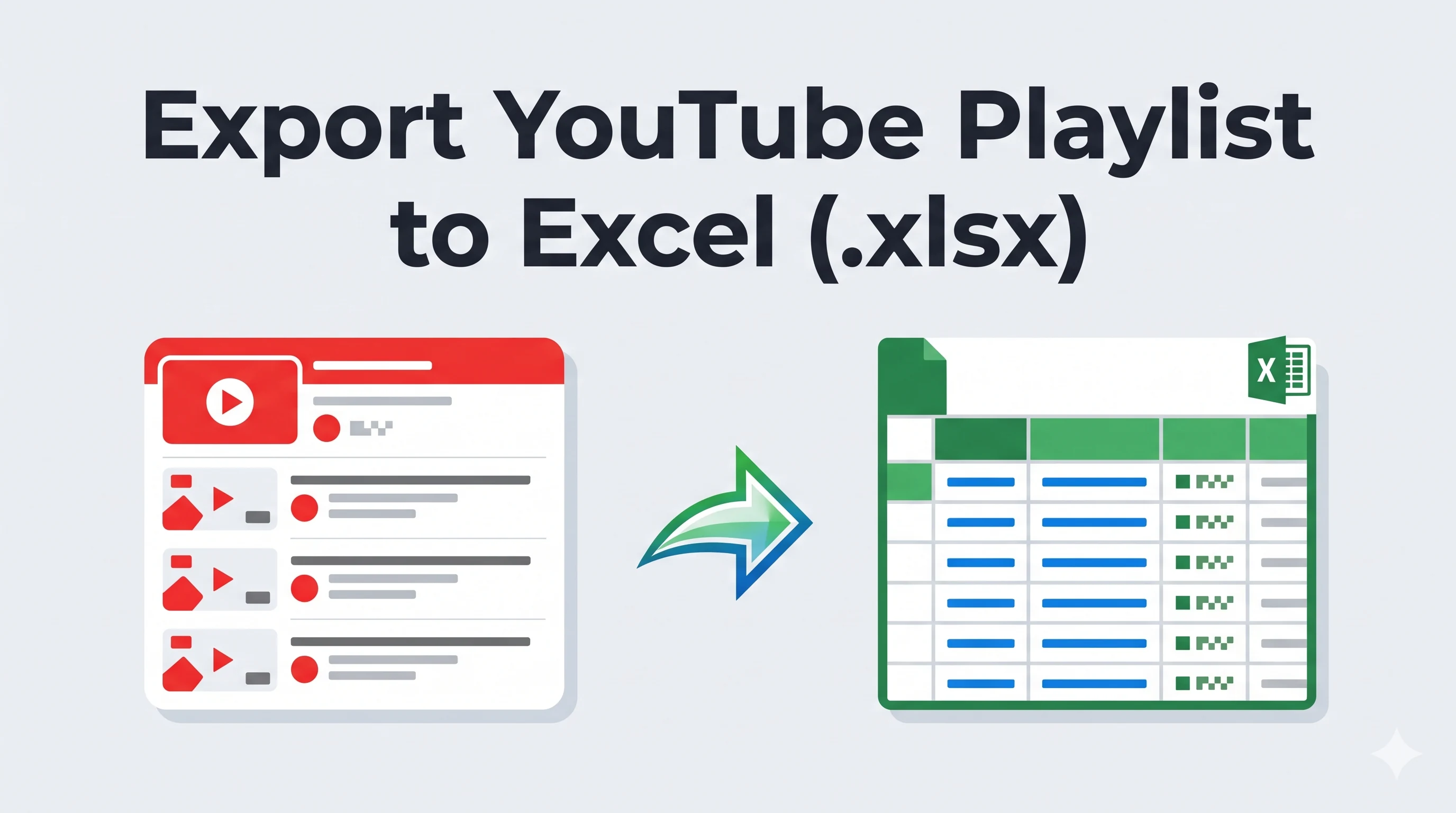
Playlists are where many of us organize our most useful YouTube content. Whether you have gathered an extensive course on programming, collected hundreds of video editing assets, saved industry podcasts, or built a big personal music library, your playlists represent hours of careful curation.
The problem is that keeping that information only inside YouTube is risky. Videos get deleted, accounts get suspended, and creators sometimes switch public uploads to private. When that happens, YouTube does not tell you what was lost. It just shows an empty gray box that says "[Deleted video]". If your playlist has hundreds of videos, you will have no idea which video went missing.
Many people want to take their data out of YouTube and save it into a spreadsheet. When you convert a youtube playlist to excel, you get a clean, permanent record on your own computer. You can sort by view counts, check upload dates, filter by creator, and keep a backup of every video link.
However, if you have ever tried copying video titles and web links one by one into a spreadsheet, you know how painful that is. And if you have tried generic online scrapers, you probably ran into broken character symbols, messed-up columns, and links that were just dead plain text.
In this guide, I will explain why native Excel (.xlsx) files work much better than standard CSV files for YouTube playlists, and how you can export youtube playlist to excel with working hyperlinks in seconds using our free tool.
Why Excel (.xlsx) Beats CSV for YouTube Playlists
Many tools offer a basic CSV export. While CSV files are useful for quick data transfers, they cause common headaches when dealing with YouTube data. When you convert a playlist to excel using a real modern workbook (.xlsx), you avoid these problems completely:
-
Working, Clickable Hyperlinks: In a standard CSV file, links are stored as raw text strings. When you open a CSV in Microsoft Excel or Google Sheets, the links are often not clickable. You have to double-click each cell or write manual
=HYPERLINK()formulas just to make them open. Our tool writes native Excel hyperlinks, meaning you can click any video title or link immediately to open the video in your browser. - Zero Character Encoding Problems (UTF-8 OpenXML): YouTube titles come from every language in the world. They often contain Japanese Kanji, Korean Hangul, Arabic script, Spanish accents, and emojis like 🔥, 🎧, or 💻. When desktop Excel opens a regular CSV file, it frequently uses old regional ASCII or ANSI settings. This turns foreign words and emojis into strange symbols like "é" or "???". Modern Excel (.xlsx) files use OpenXML standards with UTF-8 encoding built in. Every character, accent, and emoji renders cleanly on both Windows and Mac.
- Commas in Video Titles Do Not Break Your Columns: Video creators use commas in their titles all the time, such as "Python Tutorial: Lists, Loops, and Functions (2026)". In a CSV file, commas tell the computer where to start a new column. If the quoting is slightly off, a single title can split across three different columns, throwing off your whole table. In an .xlsx file, each cell is its own isolated container, so commas, quotes, and line breaks never spill into other columns.
-
Real Numbers and Structured Durations: Our tool formats view counts, like counts, and comment counts as actual numeric values rather than text. This means you can immediately use Excel sort functions from largest to smallest, or run formulas like
=AVERAGE()and=SUM()without errors. Video durations are also provided in both total seconds and readable format (MM:SS or HH:MM:SS).
How to Export a YouTube Playlist to Excel in 5 Steps
Exporting your playlist into a polished spreadsheet is straightforward. You do not need to install software, install browser extensions, or share your Google password. Here is the step-by-step process:
Step 1: Copy Your Playlist Web Link
Open YouTube or YouTube Music in your browser or mobile app. Navigate to the playlist you want to export. Click the "Share" button and select "Copy Link", or simply copy the URL from your browser address bar. The link usually looks like this:
https://www.youtube.com/playlist?list=PLrAXtmErZgOdP_8GztsuKi9f5QOcWyo80
Note on privacy: Make sure your playlist is set to either Public or Unlisted. YouTube's official API blocks third-party tools from reading Private playlists. If your playlist is currently Private, open YouTube Studio or the playlist edit screen, temporarily change the visibility to Unlisted, run your export, and change it back to Private whenever you are finished.
Step 2: Open the Free Exporter
Go to our homepage: Export YouTube Playlist. Paste your playlist link into the large input field at the top of the page.
Step 3: Select the Excel (.xlsx) Format
Under the "Export files as" section, you will see a list of supported formats. Check the box for Excel. You can also select other formats like CSV, Text, or Markdown at the same time if you want a bundled ZIP archive with multiple file types.
Step 4: Pick the Columns You Need
Click on the "Customize export" section to see the available columns. You can choose exactly what information you want in your spreadsheet:
- Video No: The original numerical position of each video in the playlist.
- Title: The full title of the video or song.
- Video URL: Direct, clickable web link to the video watch page.
- Channel Name: The creator, brand, or artist who published the video.
- Views, Likes, and Comments: Up-to-date engagement metrics for each item.
- Duration: Provided both as total seconds (for easy math) and formatted timestamp (for quick reading).
- Uploaded Time: The exact publication timestamp.
- Description: The full text from the video description box.
- Tags: The video SEO tags entered by the creator.
- Links & Emails: Extracted web links and contact email addresses found inside video descriptions.
If you want a simple and fast spreadsheet, you can uncheck Descriptions and Tags to keep the file lightweight.
Step 5: Click Export and Save Your File
Optionally choose a sorting preference (such as sorting by Views or Upload Date), then click the blue Export button.
The website connects directly to the official YouTube Data API, pulls the video data, and builds the Excel workbook right inside your browser. Your browser will prompt you to save the .xlsx file immediately. Because the file generation happens on your own device, your data stays private and the download completes in seconds.
Useful Ways to Analyze Your YouTube Excel File
Once you open your exported file in Microsoft Excel, Google Sheets, or LibreOffice Calc, there are several practical things you can do with your data:
1. Turn on AutoFilter for Easy Searching
Select your top header row and press Ctrl + Shift + L on Windows (or Cmd + Shift + L on Mac). This adds dropdown filter arrows to every column. You can now:
- Filter by a specific creator or channel name to see only their contributions.
- Search for specific keywords inside video titles.
- Sort view counts from highest to lowest to find the most popular videos in the series.
2. Calculate Total Playlist Watch Time
Because the "Duration in seconds" column contains clean numbers, finding the total length of a video course or lecture series takes one simple formula. In an empty cell below your duration column, type:
=SUM(F2:F100)/3600
This adds up all the video seconds and divides by 3600, giving you the total watch time in hours. This is especially helpful for students planning study schedules.
3. Spot Deleted Videos Before They Disappear
Keep your exported Excel sheet saved on your computer or cloud drive. If you notice a video count drop on YouTube in the future, you can compare your YouTube playlist with your saved Excel file. You will still have the exact title, channel name, and watch link for every item that was originally in your library.
4. Opening Your File in Google Sheets for Free
If you do not have Microsoft Office installed, you do not need to purchase a subscription. Open Google Drive in your web browser, click "New", select "File upload", and choose your downloaded .xlsx file. Google Sheets will open the workbook with all columns, numbers, and clickable hyperlinks intact.
Explore Other Helpful Tools in Our Suite
Exporting playlists to Excel is just one part of what our platform offers. Depending on what you are trying to accomplish, these related tools can save you time:
- YouTube Playlist Link Extractor: If you only need a clean list of video URLs without any extra spreadsheet columns, this tool extracts all video links into a simple copyable list or plain text file.
- YouTube Playlist Title Extractor: Quick way to grab all video names from a playlist or channel to paste directly into your notes or documents.
- YouTube Playlist Analyzer: Want to understand a playlist before exporting? This tool shows total duration, engagement rates, average views, and channel upload distribution in a visual dashboard.
- YouTube Channel Export: Need to export all uploads from an entire creator channel rather than just a single playlist? This tool exports up to 4,500 channel videos into Excel or CSV with one click.
- YouTube Channel to Playlist URL: Turn any channel uploads into a binge-watchable playlist link for regular videos, Shorts, or livestreams.
Frequently Asked Questions
Ready to save your playlist?
Head over to our free export tool and back up your playlists into Excel with working links in just a few clicks.
Open YouTube Playlist Exporter