How to Check YouTube Channel Keywords
Published on: 5th October, 2026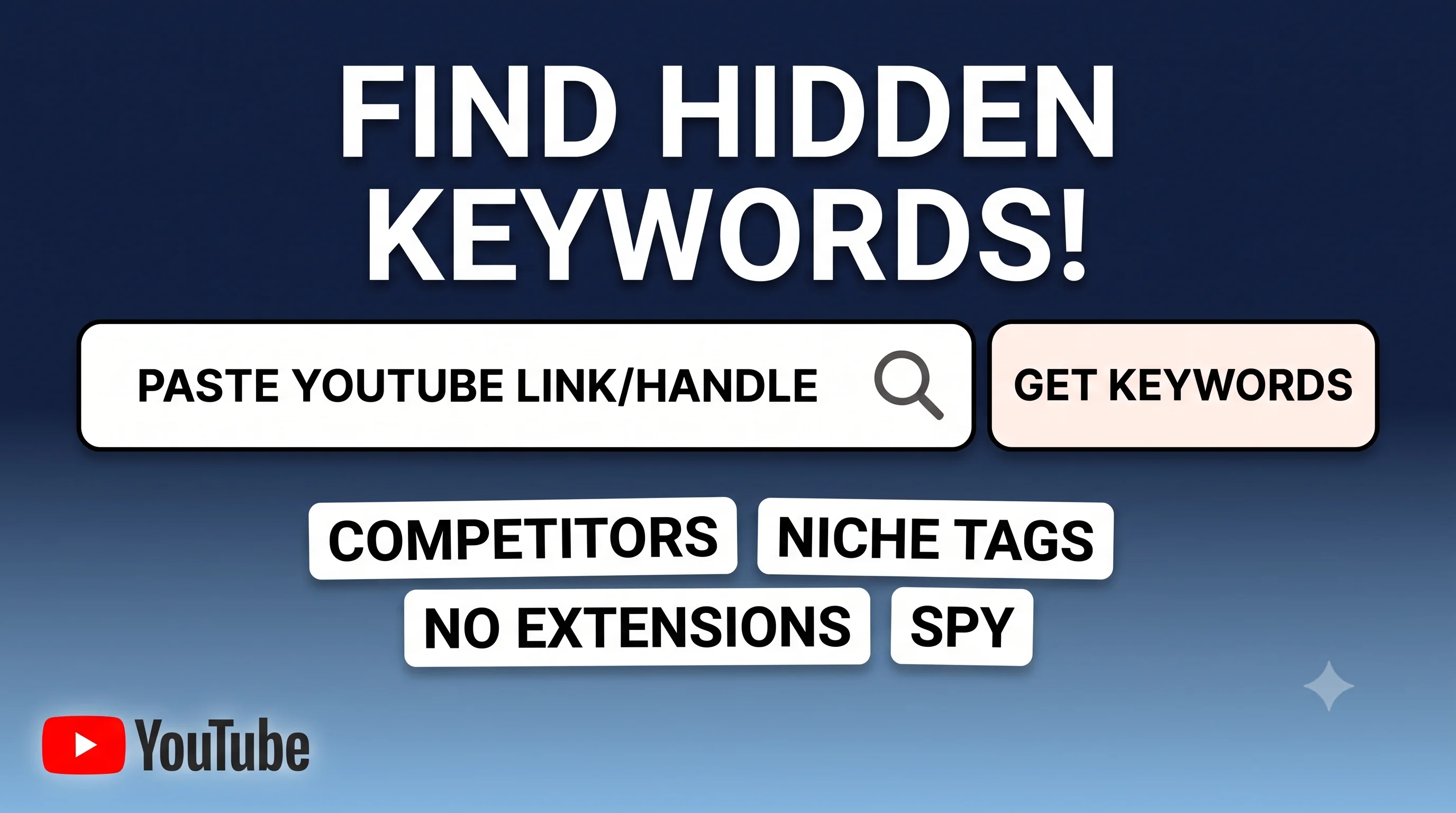
If you have ever stumbled across a fast-growing YouTube channel in your niche, you have probably wondered exactly how they are telling the YouTube algorithm what their content is about. While video titles and thumbnails get the clicks, there is a hidden layer of metadata every creator sets up behind the scenes: channel keywords.
Channel keywords tell YouTube the overall theme of your channel. Finding out what keywords your competitors are using is a great way to double-check your own channel setup. But actually seeing those keywords usually involves installing clunky browser extensions or doing annoying right-click "View Page Source" tricks.
What Are YouTube Channel Keywords (And Why Do They Matter)?
Before you start looking at other creators, it helps to understand what channel keywords actually do. In YouTube Studio, there is a specific settings page where creators can type in a list of words that describe their entire channel.
These are different from normal video tags. A video tag describes one specific video (like "how to fix a leaky sink"). A channel keyword describes your whole brand and niche (like "home plumbing repair" or "DIY house maintenance").
So why does this matter? When you start a new channel, YouTube has no idea who your audience is. Channel keywords act as a basic map. They help the YouTube algorithm group your channel with similar creators. If your keywords match popular search terms in your topic, YouTube has a much easier time recommending your videos to the exact right viewers.
The Problem with Most Keyword Tools
When you want to do a quick channel keywords check online, you usually run into two options.
The first is browser extensions like TubeBuddy or vidIQ. These are incredibly powerful tools, but they can slow down your browser, clutter your YouTube layout, and require you to create an account and give channel permissions just to see basic tags.
The second option is using random web tools. The problem with many of these is that they are surprisingly strict and outdated. Most of them force you to input the exact 24-character Channel ID (the one that starts with UC...). But YouTube hides these IDs nowadays, replacing them with simple @handles. This means you still have to dig around just to use the tool. On top of that, many free web tools limit how many channels you can check per day unless you pay for a premium upgrade.
A Better Way: Checking Keywords Instantly
I built the YouTube Channel Keyword Extractor to be as frictionless as possible. It is a web app that gives you exactly what you need without the headache.
- No signups or limits: It is 100% free and runs directly in your browser. You can check 10 channels or 100 channels in a row - there are no daily caps.
- Smart link detection: You don't need to hunt down the technical Channel ID. You can just paste the creator's
@handle. Even better, if you are watching one of their videos, you can just paste that video link. The tool will automatically figure out who the creator is and grab their channel keywords. - Clean, ready-to-use output: Instead of just showing you a messy list of words on the screen, the tool gives you actual buttons to copy the data exactly how you need it.
Reviewing, Sorting, and Exporting the Keywords
Once you paste a link into the tool and hit extract, you will see all the tags the creator entered in their YouTube Studio settings. Instead of just giving you a plain block of text, the tool loads them as individual, clickable chips. Here is how you can use the built-in features to organize them before exporting:
- Pick Exactly What You Need: Every single keyword has its own checkbox. You do not have to copy the whole list if half the words do not apply to your channel. Just click the ones you want, or use the Select All and Deselect All buttons. A live counter at the top will show you exactly how many you have picked.
- Sort and Organize: If a creator has 40 keywords, it can be hard to read through them randomly. You can use the sorting dropdown to organize the list alphabetically (A-Z or Z-A), or sort them by length (longest text first or shortest text first). Sorting by longest text is a great trick to quickly find long-tail search phrases.
When you have selected the keywords you want, doing a direct youtube channel keywords copy is great when you are setting up a new channel. You have a few options to export them:
- Standard Copy: Click the Copy button to grab your selected keywords separated by commas. You can literally paste this directly into your own YouTube Studio settings, and YouTube will automatically split them into proper tags.
- Copy with Hashtags: If you want to use these words for your video descriptions or social media posts, click Copy with Hashtag. The tool will instantly remove the spaces in multi-word phrases and put a
#in front of every keyword. - Download as Text: If you are doing bulk research on multiple competitors, you can use the Download buttons to save the lists as clean
.txtfiles on your computer.
A Quick Tip on Using Competitor Keywords
While checking successful channels in your niche is a great research tactic, you should never blindly copy and paste their entire list into your own settings.
First, it is very common for creators to put their own brand name or personal name in their channel keywords. If you copy their specific name into your tags, it can confuse the algorithm and goes against YouTube's best practices. Use their list to find broad industry terms, niche phrases, and topic ideas that you might have forgotten to include on your own channel.
Frequently Asked Questions
Why does the tool say "No keywords found"?
Channel keywords are completely optional. A creator has to manually go into their YouTube Studio settings and type them in. If our tool returns zero keywords, it just means that specific creator never bothered to set them up.
Are channel keywords the same as video tags?
No. Video tags are attached to individual videos and describe exactly what happens in that specific upload. Channel keywords describe the broad, overall theme of your entire channel to help YouTube understand your niche.