How to Backup and Save Your YouTube Playlists (Complete Guide)
Published on: 26th October, 2026Quick Answer: How to Save a YouTube Playlist in 3 Steps
If you need an immediate offline backup of all video names, links, and durations before anything gets deleted, here is the fastest way:
- Step 1: Copy your YouTube or YouTube Music playlist URL (make sure privacy is set to Public or Unlisted).
- Step 2: Open our free YouTube Playlist Exporter.
- Step 3: Paste the link, select your preferred file format (we support 14 formats including Excel, CSV, Text, Bookmark HTML, PDF, and M3U8), and click Export. Your complete playlist archive downloads immediately to your computer or phone.
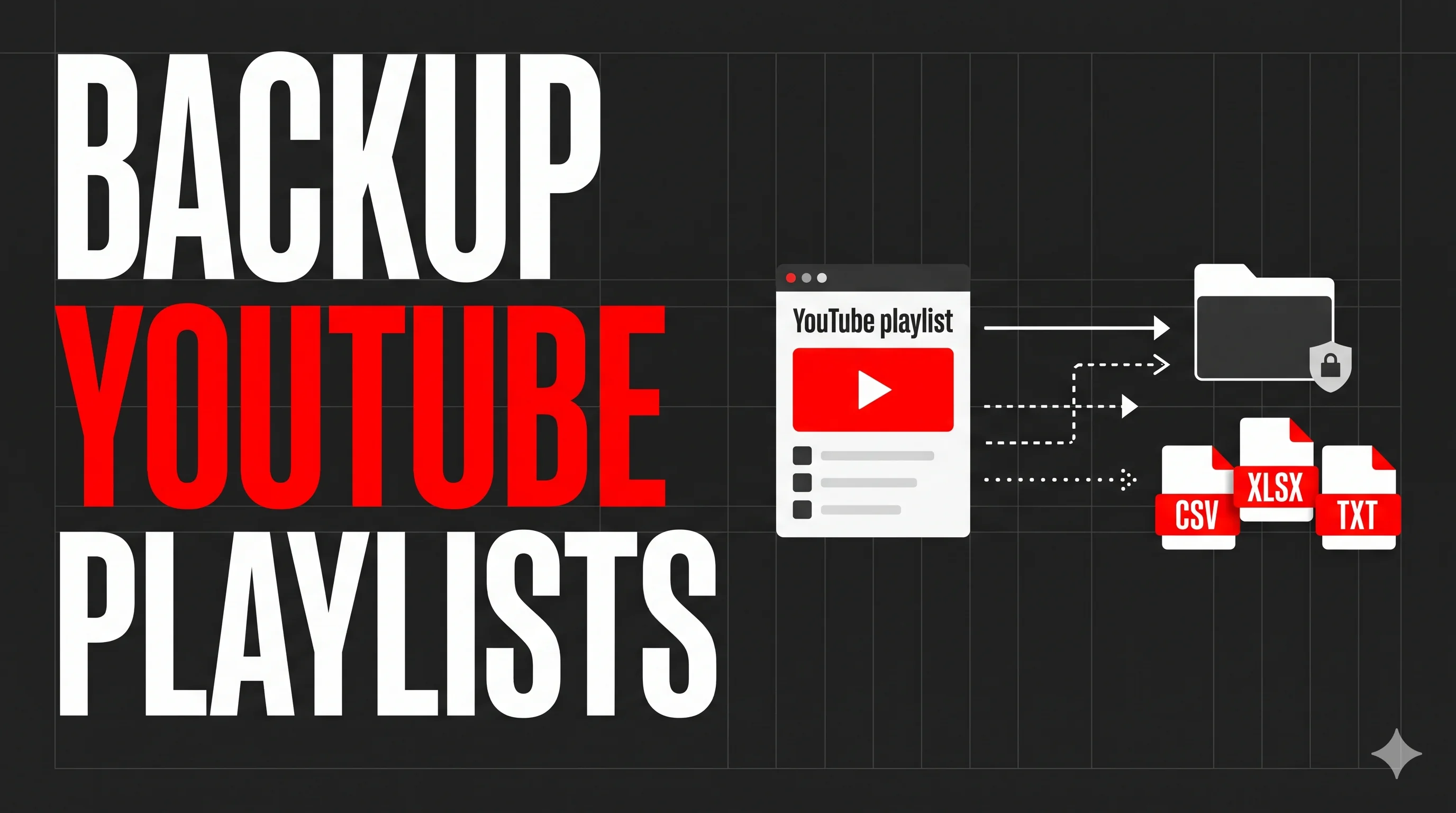
Playlists are one of the most practical features on YouTube. People use them to collect tutorial series, organize work research, save rare music tracks, and build study roadmaps. Because playlists stay tied to your account, it is easy to assume they will always be there whenever you need them.
The problem is that playlists on YouTube are not permanent. Over time, videos start disappearing. Creators delete old uploads, channels get closed, rights agreements expire, and uploaders switch videos to private. When that happens, YouTube does not notify you. Instead, it replaces the video with a blank placeholder that says "[Deleted video]" or "[Private video]".
The biggest issue is that YouTube wipes the title, channel name, and thumbnail from your playlist view. You are left with a broken link like watch?v=k9X8j2Lp1aQ and no way to know what song, lecture, or tutorial was originally saved there.
If you have spent months or years organizing your collections, keeping a regular youtube playlist backup protects your library. In this guide, you will learn practical methods to save youtube playlist information to offline files like Excel, CSV, plain text, and browser bookmarks so you never lose your list.
Why Saving Inside YouTube Is Not a Real Backup
When most people think about how to save a youtube playlist, they click the "+ Save playlist" button on YouTube. While this creates a handy shortcut in your YouTube account sidebar, it is not a true backup for three reasons:
- You Do Not Control the Content: If the original uploader deletes the playlist, reorders the items, or removes specific videos, those changes immediately affect your library. The playlist can disappear without notice.
- Deleted Videos Leave No Information Behind: Once a video is deleted or made private, YouTube clears the title from public view. You cannot see who posted it or what the topic was.
- Account Access Issues: If your Google account runs into login issues, temporary locks, or security reviews, you cannot access your playlists.
A true youtube playlist save means keeping a clean copy of your playlist data on your own computer or cloud storage (such as Google Drive, OneDrive, or Dropbox) where no platform changes can alter it.
What Information Should You Back Up?
Some people think backing up a playlist requires downloading large video or audio files. Downloading full videos takes up massive disk space, takes a long time, and often violates platform terms.
For most users, what matters is the metadata. A clean metadata backup preserves everything you need to identify and find your videos again:
- Video Title: The full title, including version details, episode numbers, and artist names.
- Direct Video URL: The exact link to the video watch page.
- Channel Name: The creator or artist who published the video.
- Duration: The running time of the video, which is helpful when identifying music tracks or course lessons.
- Upload Date: The original publication date, preserving the chronology of the playlist.
A metadata file for a playlist with hundreds of videos takes only a few kilobytes of space, opens instantly on any phone or laptop, and stays readable indefinitely.
Method 1: Save Your YouTube Playlist to File
The most direct way to backup youtube playlist data is using our free YouTube Playlist Exporter. It uses the official YouTube Data API to read public playlist details and exports them into your chosen file format.
Step 1: Copy Your Playlist URL
Copy the link to the playlist you want to backup:
- On Desktop: Open YouTube, go to the playlist page, and copy the URL from the browser address bar (such as
https://www.youtube.com/playlist?list=PLrAXtmErZgOdP...). - On Mobile: In the YouTube app, open your playlist, tap the Share button, and tap Copy link.
- Privacy Requirement: Make sure the playlist is set to Public or Unlisted. Private playlists cannot be read by external tools.
Step 2: Paste the URL into the Playlist Exporter
Go to the YouTube Playlist Exporter homepage and paste your link into the input field.
Step 3: Choose Your Backup Format
Our tool supports 14 different file formats. Whether you want a spreadsheet, a printable document, a database, or a media player playlist, you can select one format or check multiple boxes to download several formats at once.
Step 4: Optional Customizations
If you want full control over your backup file, open the Optional: Customize export section on the homepage:
- Select Specific Data Columns: Choose exactly what to include, such as Titles, URLs, Channel names, Descriptions, Thumbnails, Views, Likes, Comments, Tags, Upload dates, and Duration (formatted, in seconds, in minutes, or as timestamps). You can also extract emails and links found inside video descriptions.
- Sort Before Exporting: Organize your backup list by Title, Channel name, Views, Likes, Comments, Duration, or Uploaded time in ascending or descending order.
- Custom CSV Settings: Specify custom delimiters like semicolons (;) or pipes (|), and choose between standard UTF-8 encoding or Excel-compatible encoding.
Step 5: Download Your Backup
Click the Export button. Your files are generated directly in your browser and saved to your device immediately.
If you want to backup a private playlist that only you can see, you do not need to make it public to the world. In YouTube Studio or the mobile app, set the playlist privacy to Unlisted. An unlisted playlist does not show up in YouTube search or on your channel page. Once you have exported your backup file, you can switch it back to Private immediately.
Format Comparison: Which Backup Format Should You Use?
Our tool supports 14 different export formats, giving you the flexibility to use your playlist data anywhere. Here is a breakdown of every available format and what it is best used for:
| Format | Category | Best Suited For | Compatible Applications | Key Advantage |
|---|---|---|---|---|
| Excel (.xlsx) | Spreadsheet | Detailed backups with multi-column sorting and filtering. | Microsoft Excel, Google Sheets, Apple Numbers, LibreOffice Calc. | Auto-aligned columns and working clickable hyperlinks. |
| CSV (.csv) | Spreadsheet | Importing data into databases, Notion tables, and analytics tools. | Any spreadsheet application, Notion, Airtable, Python, R. | Universal compatibility with custom delimiter options. |
| Plain Text (.txt) | Notes & AI | Clean text lists, offline reference, and prompting AI tools. | Windows Notepad, Mac TextEdit, Apple Notes, ChatGPT, Claude. | Smallest file size and zero software requirements. |
| Bookmark HTML | Browser | Adding all videos directly into your web browser bookmark bar. | Google Chrome, Safari, Mozilla Firefox, Microsoft Edge, Brave. | Native browser folder with 1-click access to all videos. |
| Markdown (.md) | Notes & Wikis | Building personal knowledge bases, study checklists, and wikis. | Obsidian, Notion, Logseq, Bear, GitHub, VS Code. | Interactive checklist syntax and formatted markdown tables. |
| HTML (.html) | Dashboard | An interactive offline web dashboard to search and sort videos. | Any web browser (Chrome, Safari, Firefox, Edge). | Standalone webpage with live search and sort features offline. |
| Word (.docx) | Document | Creating formal course syllabi, reports, and printable documents. | Microsoft Word, Google Docs, LibreOffice Writer, Pages. | Structured document table ready to format and print. |
| PDF (.pdf) | Document | Read-only archival copies, distribution, and easy printing. | Adobe Acrobat, browser PDF viewers, Apple Books. | Permanent layout that looks identical on all devices. |
| M3U (.m3u) | Media Player | Playing YouTube playlist streams in desktop media players. | VLC Media Player, Windows Media Player, Winamp, Foobar2000. | Standard media playlist format recognized by audio players. |
| M3U8 (.m3u8) | Media Player | Streaming playlists with full international text and special characters. | VLC Media Player, PotPlayer, Kodi, Android media players. | UTF-8 encoding prevents character corruption in foreign titles. |
| JSON (.json) | Developer | Automated backups, API integrations, and custom software scripts. | VS Code, Python, JavaScript, any programming environment. | Structured data objects with key-value pairs for all fields. |
| SQLite (.db) | Database | Running SQL queries, building local archives, and deep data filtering. | DB Browser for SQLite, SQLite CLI, Python sqlite3, DBeaver. | Full relational database file ready for SQL queries. |
| YAML (.yaml) | Developer | Human-readable configuration files and data pipelines. | Code editors, static site generators, automation tools. | Clean hierarchy that is easy for humans and machines to read. |
| XML (.xml) | Developer | Data exchange with enterprise software, feeds, and XML parsers. | XML editors, web services, feed readers, enterprise tools. | Standardized hierarchical schema for legacy and data systems. |
Already Have Deleted Videos in Your Playlist? How to Find What They Were
If you already have gray boxes labeled "[Deleted video]" or "[Private video]" in your playlist, exporting the playlist now will capture the remaining active videos, but it cannot display what those deleted videos used to be.
To solve this, you can use the dedicated tool on Export Venue. The tool scans your playlist URL against historical records to reveal the original video titles, creator names, and upload details behind those missing entries.
Scan your playlist to reveal the original titles and channel names of deleted or private videos.
Using this tool allows you to identify what vanished from your playlist so you can replace the missing items or look for re-uploads by the same creator.
Recommended Backup Routine for Long-Term Safety
To keep your personal video and music collections safe from platform changes, consider these practical habits:
- Quarterly Exports: If you add videos to your playlists regularly, set a calendar reminder once every three or four months to re-export your important playlists into an updated Excel or CSV file.
- Save Backups in Cloud Storage: Keep your exported files in a synced folder like Google Drive, OneDrive, or Dropbox. That way, if your computer drive fails, your playlist history is safe.
- Backup YouTube Music Playlists: Music licenses expire frequently, causing tracks to vanish from streaming catalogs without notice. Keeping an Excel or text backup of your music playlists ensures you always have the artist and song names.
Summary
Playlists are easy to build, but relying solely on YouTube to keep them safe is risky. Videos get deleted, accounts change, and licensing rights expire regularly.
Taking a few moments to save youtube playlist to file formats like Excel, CSV, or browser bookmarks gives you a permanent record of your media. You keep all your titles, creator names, and links organized, and you never have to wonder what used to be in those blank gray boxes.
Ready to backup your YouTube playlists?
Paste any YouTube or YouTube Music playlist URL and download your permanent archive in seconds.
Frequently Asked Questions
How do I save an entire YouTube playlist to my computer?
Copy the public or unlisted YouTube playlist link, paste it into our free YouTube Playlist Exporter, choose your preferred format like Excel (.xlsx), CSV, or plain text (.txt), and click Export. The complete metadata backup containing all video titles, working URLs, channel names, and durations downloads directly to your device.
Which file formats can I use to save my YouTube playlist?
Our free exporter supports 14 output formats: Excel (.xlsx), CSV (.csv), Plain Text (.txt), Bookmark HTML, JSON (.json), Markdown (.md), Interactive HTML (.html), XML (.xml), YAML (.yaml), SQLite (.db), Word (.docx), PDF (.pdf), M3U (.m3u), and M3U8 (.m3u8).
Can I save a private YouTube playlist to a file?
YouTube blocks external tools and APIs from reading private playlists. To backup your private playlist, temporarily switch its privacy setting to 'Unlisted' in YouTube Studio or the YouTube mobile app, run the export to save your file, and switch it back to 'Private' whenever you are done.
What happens to saved playlists when a video is deleted on YouTube?
Inside YouTube's interface, deleted or private videos turn into blank placeholder boxes labeled '[Deleted video]' or '[Private video]', completely erasing the title, channel name, and thumbnail. If you save an offline backup file in Excel, CSV, or Text beforehand, you retain a permanent historical record of the original video title, channel, and link.
How do I find the title of a deleted or private video already in my playlist?
If videos in your playlist have already been deleted or set to private, you can use the Find Deleted Videos tool on Export Venue. It scans your playlist URL and checks historical public records to uncover the original video titles and channel names behind those missing videos.
Can I backup YouTube Music playlists using this same method?
Yes. YouTube Music playlists share the exact same underlying playlist system as regular YouTube. Copy your YouTube Music playlist URL (music.youtube.com/playlist?list=...), paste it into our exporter, and save your tracklist to Excel, CSV, or Text.
Do I need a Google account or YouTube API key to backup my playlists?
No. Our exporter is 100% free and web-based. You do not need to sign in with your Google account, create developer API keys, or install browser add-ons.