How to Copy YouTube Video Descriptions on Mobile & Desktop
Published on: 11th October, 2026TL;DR: How to Copy a YouTube Description in 5 Seconds
The official YouTube mobile app does not allow you to highlight or copy text inside the description box. Here is the fastest way around this limitation:
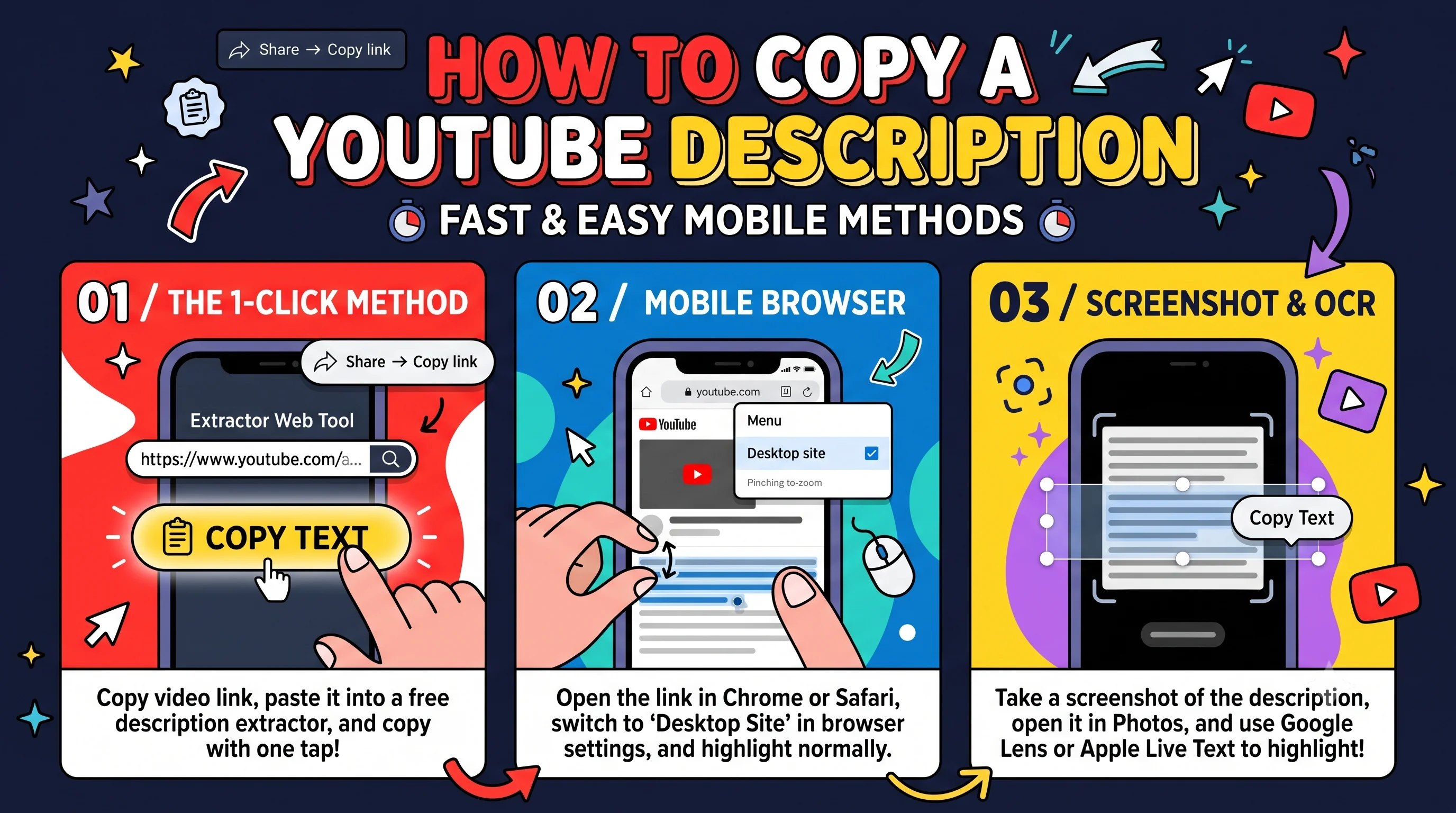
- The 1-Click Method (Mobile & Desktop): Under the video, tap Share, tap Copy link, and paste it into our free YouTube Description Extractor. It displays the full description as clean text you can copy with one tap.
- Bulk Export for Playlists & Channels: Need descriptions for 20, 50, or 500 videos at once? The same Description Extractor has dedicated Playlist and Channel tabs to download all descriptions in CSV, Excel, Text, or JSON.
- Without Any Tools (Mobile Browser): Open Chrome or Safari on your phone, paste the video link, tap the browser menu, turn on Desktop Site, and highlight the description text normally.
- Using Built-in Phone Scanners: Take a screenshot of the open description, open the screenshot, and use Apple Live Text (on iPhone) or Google Lens (on Android) to select the text.
Have you ever been watching a YouTube video on your phone and tried to copy something from the description box, only to realize the app completely blocks you?
It happens all the time. Maybe the creator shared a recipe with 15 ingredients and measurements, and you want to paste it into your shopping notes. Maybe a coding tutorial has a shell command you need to run, a musician posted song lyrics, or a reviewer listed coupon codes and product links. You tap and hold your finger on the screen, expecting the blue text selection pins to appear, but nothing happens. The YouTube mobile app just refuses to let you highlight any text.
It is one of the most annoying little roadblocks on mobile phones today. Whether you searched Google for how to copy description from youtube, typed youtube description copy and paste, or even searched in Hindi for youtube video ka description copy, you are definitely not alone. Millions of people run into this exact wall every single day.
The good news is that you do not need to sit there retyping long paragraphs by hand. In this guide, I will show you five simple, working ways to copy any YouTube description on iPhone, Android, and desktop computers. We will cover the fastest one-click online method, built-in phone tricks, and how to handle YouTube Shorts descriptions.
Why Does the YouTube Mobile App Block Description Copying?
Before jumping into the workarounds, you might wonder why YouTube makes this so hard on mobile in the first place.
On a regular website, web browsers let you highlight any word on the page by default. But inside mobile apps like YouTube, the interface is written in native code (Swift on iOS and Kotlin or Java on Android). The description box is not built as a standard text input field. Instead, YouTube sets the container view to capture tap events rather than text selection gestures.
YouTube does this mainly for two reasons:
- Clickable links and timestamps: Descriptions are usually stuffed with blue timestamps (like 02:45), hashtags, and website URLs. YouTube prioritizes letting you tap those links to jump around the video without accidentally triggering the text selection menu.
- Scroll gesture conflicts: Long descriptions can be several thousand characters. When you swipe your thumb up and down inside that small drawer, YouTube wants the drawer to scroll smoothly rather than getting stuck selecting words.
While that makes sense for scrolling, it leaves everyday users stranded when they simply need to copy useful text. Luckily, there are a few clean ways around it.
Method 1: Use the Free YouTube Description Extractor (Fastest & Cleanest)
If you want the full description without cutting off paragraphs or fiddling with tiny phone buttons, the easiest option is to use our free YouTube Description Extractor tool.
I built this tool specifically to solve this problem. You do not need to install an app, create an account, or grant any permissions. It works directly in your mobile browser or computer browser.
Step-by-Step Instructions:
- Copy the Video Link: In the YouTube app, tap the Share button right under the video player. In the popup sheet, tap Copy link.
- Open the Tool: Open Chrome, Safari, or whatever browser you use, and go to the YouTube Description Extractor.
- Paste and Fetch: Paste the video link into the box and tap View Description.
- Copy What You Need: The tool instantly loads the complete, full-length description. You can tap the Copy button to send the entire text to your clipboard, or tap the Download button to save it as a clean text (.txt) file.
Method 2: Use Mobile Browser Desktop Mode (No Extra Tools)
If you are on your phone and do not want to use an external website, you can use your phone's browser to trick YouTube into showing the desktop website.
Desktop YouTube allows standard mouse selection, and when you open the desktop version on your phone, your touch gestures can highlight words just like a computer mouse.
How to Do It on iPhone (Safari):
- In the YouTube app, tap Share under the video and choose Copy link.
- Open Safari and paste the link into the address bar. Press Go.
- If your phone tries to reopen the YouTube app automatically, long-press the paste button and select "Paste and Go", or make sure you stay in Safari.
- Tap the aA icon on the left side of the Safari address bar (or the puzzle icon on iOS 18).
- Tap Request Desktop Website.
- Once the page reloads, tap "...more" to expand the description box under the video.
- Press and hold on the text. The standard blue selection handles will appear. Drag them over the section you want and tap Copy.
How to Do It on Android (Google Chrome):
- Copy the video link from the YouTube app.
- Open Google Chrome on your Android phone and paste the URL.
- Tap the three vertical dots in the top right corner of Chrome.
- Check the box that says Desktop site.
- When the desktop version loads, expand the description under the video.
- Long-press on any word, select the text you want, and tap Copy.
The drawback of this method: Desktop mode can feel clunky on small screens. You will need to pinch and zoom into the text, and sometimes tapping links by mistake opens new tabs while you are trying to drag the selection handles.
Method 3: Screenshot and Phone OCR (Apple Live Text & Google Lens)
Both modern iPhones and modern Android phones now come with optical character recognition (OCR) built directly into their operating systems. This means your phone can read words inside any photo or screenshot.
If you only need to grab a short recipe list or a single promo code, this method works without leaving your phone's photo gallery.
On iPhone (iOS 15 or Newer):
- In the YouTube app, tap "...more" to expand the description box so the text is visible on your screen.
- Take a screenshot by pressing the Side button + Volume Up button together.
- Tap the screenshot preview in the bottom left corner (or open it later in the Photos app).
- Tap the Live Text icon in the bottom right corner (it looks like three lines inside a square).
- Your iPhone will highlight all the text in the screenshot. Drag your finger across the words you need and tap Copy.
On Android (Google Lens / Photos):
- Open the description box on YouTube and take a screenshot (usually Power + Volume Down).
- Open the screenshot in Google Photos or tap the Google Lens button if your phone shows it on the screenshot preview.
- Tap the Text tab at the bottom.
- Tap Select all or drag to highlight the text you want, then tap Copy text.
The limitation: This is only practical for short descriptions. If a creator wrote a long description that requires 4 screens of scrolling, you would have to take 4 separate screenshots and repeat the process 4 times.
Method 4: How to Copy YouTube Shorts Descriptions on Mobile
YouTube Shorts have become massively popular, but copying text from them is even more confusing than regular videos. In the Shorts feed, the description is not even visible on the main screen.
Many creators put recipes, workout reps, or affiliate links in Shorts descriptions. Here is how to access and copy them:
How to Find and Copy Shorts Descriptions:
- While watching the Short, look at the right side of the screen. Tap the three vertical dots (...) menu icon. (On some updated app layouts, this is located at the top right).
- Tap Description in the menu that slides up from the bottom.
- You can now read the description, but just like standard videos, the app will not let you highlight words directly.
- To copy the text, close the drawer, tap the Share arrow on the Short, and tap Copy link.
- Open the YouTube Description Extractor, paste your Short URL, and tap View Description.
- The full Shorts description appears immediately with a clean Copy button.
Method 5: Copying Descriptions on Desktop (PC & Mac)
On a laptop or desktop computer running Chrome, Edge, Firefox, or Safari, copying a YouTube description is much simpler, but people still run into a few common headaches.
The Standard Desktop Method:
- Open the YouTube video in your browser.
- Scroll down below the video player. In the gray description box, click "...more" to expand the full text.
- Click and drag your mouse cursor across the text to highlight it.
- Right-click and select Copy (or press Ctrl + C on Windows / Cmd + C on Mac).
Tips for Avoiding Accidental Link Clicks on Desktop:
Modern video descriptions often contain dozens of links packed closely together: social handles, affiliate tags, timestamps, and merchandise stores. If you click on one of those links by mistake while dragging your mouse, your browser opens new tabs and cancels your text selection.
To avoid this, try starting your mouse selection from the right side of the box (where there is empty white space) and dragging toward the left, rather than clicking directly on blue link text. Alternatively, pasting the video URL into our Description Extractor gives you a clean text box where links do not hijack your mouse clicks.
How to Bulk Export Descriptions from Entire Playlists & Channels
What if you need to copy descriptions from 20, 50, or even 500 videos at once?
If you are an academic researcher gathering YouTube data, a creator conducting competitor SEO analysis, an affiliate marketer tracking sponsor links, or a student archiving an entire tutorial series, opening every video individually to copy its description would take hours of tedious work.
Most people do not realize that the YouTube Description Extractor page has built-in bulk export tabs for both Playlists and Channels. You do not need any coding knowledge, Python scripts, or API keys.
Option A: Bulk Export All Descriptions from a Playlist
If the videos are gathered in a playlist, you can extract descriptions for up to 5,000 videos in one go:
- Open the YouTube Description Extractor tool.
- Click on the Playlist tab located at the top of the input area.
- Paste your public or unlisted YouTube playlist link.
- Choose the file formats you want: CSV, Excel (.xlsx), Plain Text (.txt), JSON, Markdown (.md), or even SQLite. You can check multiple formats, and the tool will bundle them into a single clean ZIP file.
- Click Export descriptions. The tool will process the entire playlist and download your file containing every video title, URL, published date, and full description text.
Option B: Bulk Export All Descriptions from a YouTube Channel
What if you want to study every description published by a specific creator or brand?
- On the same Description Extractor page, click on the Channel tab.
- Enter the channel URL or creator handle (for example,
@mkbhdor@hubspot). - Choose your content filter: You can export descriptions for All videos, or filter specifically for Shorts only or Live streams only. This is super helpful if you only want to analyze how a creator writes Shorts descriptions versus long-form videos.
- Select your export formats (Excel, CSV, Text, JSON, etc.) and click Export descriptions.
Frequently Asked Questions
Can I copy timestamps from a YouTube description and keep them clickable?
When you copy plain text from a description, timestamps (like 04:12) copy as normal numbers. If you paste them into personal notes like Apple Notes, Notion, or Google Docs, they will not automatically link to YouTube unless you attach the video URL. If you want a timestamp to open at that exact second, right-click the video progress bar on desktop and select "Copy video URL at current time", or add &t=4m12s to the end of the video link.
How do I copy an affiliate link or coupon code without clicking on it?
On mobile, use Method 1 (our online extractor). It displays links in plain text so you can copy the raw address without accidentally visiting the sponsor's store. On desktop, you can right-click the link itself and choose "Copy link address".
Does copying a description also copy the hidden video tags?
No. The description box and video tags are two completely different things in YouTube Studio. Description text is visible to everyone, while video tags are hidden in the page metadata for SEO. If you want to see and copy hidden video tags, check out our free YouTube Tag Extractor.
Can I extract business contact emails from YouTube descriptions?
Yes! Many creators put a business inquiries email address directly in their video description (e.g., contact@creator.com). When you paste the video URL into our YouTube Description Extractor, it automatically scans the text and lists any found email addresses under the "Emails" tab, saving you from hunting through paragraphs of social links.
Can I download descriptions for an entire YouTube channel or playlist at once?
Yes! On the YouTube Description Extractor page, click either the "Playlist" tab or the "Channel" tab at the top. Paste your playlist link or channel handle, pick your preferred format (CSV, Excel, Text, Markdown, or JSON), and click Export. It downloads all descriptions in bulk with zero software or coding required.
Is there an app I can install to copy descriptions?
You do not need to install extra apps that consume storage or battery. Many third-party "copy text" apps request invasive accessibility permissions to monitor your screen. Using your browser with our web tool or built-in phone OCR is safer, faster, and completely free.
Ready to copy any YouTube description?
Stop typing out recipes, code, and links by hand. Paste any video or Short URL into our free description extractor and copy clean text in seconds.