How to Copy a YouTube Playlist Link (Desktop, Mobile & App)
Published on: 9th October, 2026TL;DR: How to Copy a YouTube Playlist Link in 10 Seconds
Here is the quick answer depending on your device:
- On Desktop: Open the playlist page, click the Share arrow under the playlist title on the left, and click Copy. Your link will look like
youtube.com/playlist?list=.... - On Mobile App (iPhone & Android): Tap the You library tab at the bottom, tap your playlist name, tap the Share arrow near the top, and tap Copy link.
- Need all individual video links? If you want a list of every single video link inside the playlist instead of just one link, paste your playlist URL into our free YouTube Playlist Link Extractor. It copies all video links in one click.
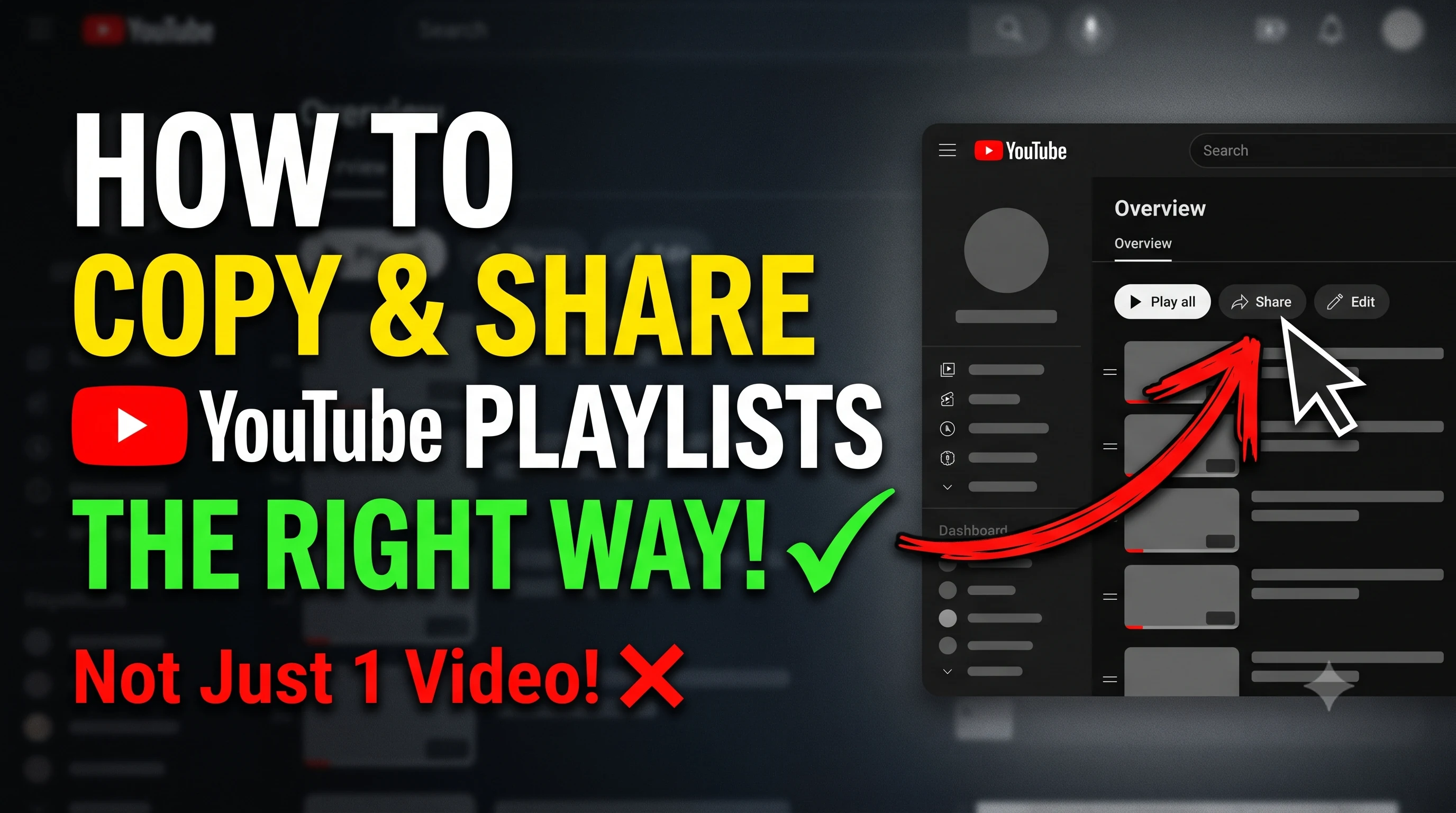
Have you ever tried to share a YouTube playlist with a friend or coworker, only to have them tell you, "Hey, this just opened video number 3, where is the rest of the list?"
This happens all the time. You spend hours building a collection of tutorial videos, workout routines, or music tracks. Then you try to share it, and YouTube ends up sending a link to a single video instead of the whole playlist overview.
The reason this happens is simple: YouTube uses two very different kinds of links. Knowing how to get the right youtube playlist link will save you time and make sure anyone who opens your link sees the complete list of videos in the right order.
In this guide, we will walk through exactly how to copy youtube playlist link on your computer, your phone, and even inside YouTube Music. We will also show you how to clean up broken links, and what to do if you need to copy all the individual video links inside a playlist at the same time.
The Big Difference: Watch Links vs Clean Playlist Links
Before jumping into the steps, it helps to look at why links get mixed up in the first place.
When you click on a video that happens to be inside a playlist, the web address at the top of your browser looks like this:
https://www.youtube.com/watch?v=VIDEO_ID&list=PLAYLIST_ID&index=3
This is called a Watch URL. It tells YouTube to play one specific video, and it happens to load the playlist in a small side queue. If you send this address to someone, a few annoying things happen:
- The recipient starts playing that specific video immediately, rather than seeing your playlist title, description, and list of videos.
- If that particular video gets deleted or made private in the future, the entire link can stop working for your recipient.
- On mobile phones, opening a watch link often launches the video player full screen without letting the person browse the other videos first.
What you actually want to share is a clean playlist URL. A clean link looks like this:
https://www.youtube.com/playlist?list=PLAYLIST_ID
When someone opens this link, they land directly on the playlist overview page. They can see all the video titles, thumbnail images, channel names, and your full description. From there, they can click "Play all" or pick whichever video they want to watch first.
How to Copy Playlist Link on YouTube Desktop (PC & Mac)
Getting a clean playlist link on a computer browser (Chrome, Firefox, Safari, or Microsoft Edge) is very straightforward once you know where to look.
Here are the two easiest ways to do it:
Method A: From the Playlist Overview Page (Recommended)
- Open YouTube in your browser.
- In the left sidebar, click on Playlists (or click your profile icon and select Your data in YouTube / Library).
- Find your playlist and click on its title. Do not click the "Play all" button, because that will start playing the video right away. Click the title to open the playlist dashboard.
- Look below the playlist cover image and title on the left. You will see a Share arrow icon. Click on it.
- A popup box will appear showing the clean playlist URL. Click the blue Copy button next to the link.
Method B: Right-Clicking from Any Channel or Search Page
- If you are viewing someone else's playlist on their channel page or in search results, hover your mouse over the title of the playlist.
- Right-click the playlist title (or hold Control and click on Mac).
- Select Copy link address from the menu.
- Your clipboard now has the exact, clean playlist link ready to paste anywhere.
youtube.com/watch?v=...&list=PL12345..., you can turn it into a clean link manually. Just find the text after list= up to the next & sign. Copy that ID (it usually starts with PL), and paste it into this format: https://www.youtube.com/playlist?list=YOUR_ID.
How to Copy YouTube Playlist Link on Mobile (iPhone & Android App)
On mobile phones, YouTube hides the playlist link in a slightly confusing spot. Many people tap the share button below the video player while watching, which only copies the single video URL.
To copy playlist link youtube on your phone correctly, follow these exact steps in the official YouTube app:
- Open the YouTube App: Launch the app on your iPhone, iPad, or Android phone.
- Go to the "You" Tab: Tap the You icon at the bottom right corner of your screen (in older app versions, this was called Library).
- Find Your Playlists: Scroll down to the Playlists section. Tap View all to see your complete list of saved and created playlists.
- Open the Playlist Page: Tap the playlist you want to share. This will open the playlist overview page showing all the videos.
- Tap the Share Button: Near the top of the screen, right under the playlist title and creator name, look for the Share arrow (or tap the three vertical dots next to the title).
- Copy Link: In the share sheet that pops up, tap Copy link. The clean link is now saved to your clipboard.
You can now paste this link into WhatsApp, iMessage, Telegram, Instagram messages, notes, or an email.
How to Copy Playlist Links in YouTube Music
If you use YouTube Music, the process is very similar, but the web addresses work slightly differently.
Here is how to get your link in YouTube Music:
- Open the YouTube Music app or visit
music.youtube.comin your browser. - Go to your Library and tap Playlists.
- Open the playlist you want to share.
- Click or tap the three dots menu next to the Play button, or click the Share icon.
- Select Copy link.
Important Note: YouTube Music links start with music.youtube.com/playlist?list=.... If you send this link to someone who does not have YouTube Music installed, it might prompt them to download the app. If you want them to open it in regular YouTube instead, simply change the music.youtube.com part of the link to www.youtube.com. The playlist ID at the end stays exactly the same!
What If You Need All the Individual Video Links at Once?
Copying the single playlist link is great when you just want to send the whole collection to a friend. But what if you have a different problem?
What if you want to:
- Paste all 40 video URLs into a spreadsheet for research?
- Import all links into note-taking tools like Notion or Obsidian?
- Share a list of 25 specific video links directly in a work chat or study group?
- Feed a clean list of video URLs into an AI tool like ChatGPT, Claude, or Google NotebookLM?
If your playlist has 50 or 100 videos, clicking on every single video, copying its address, and pasting it one by one is painful and takes forever.
This is where our free YouTube Playlist Link Extractor tool helps. Instead of doing boring manual work, you can extract every video link from any public or unlisted playlist in 3 seconds.
How to Extract All Video URLs from a Playlist in Bulk:
- Copy your clean playlist link using any method described above.
- Open the YouTube Playlist Link Extractor tool.
- Paste the playlist link into the input box and click Extract Links.
- The tool instantly pulls every video link and displays them in a clean, numbered list.
- Click Copy All Links to grab everything into your clipboard at once, or download the list as a clean Text (.txt), CSV, Excel, or Markdown file.
You do not need to install any software, you do not need to sign up for an account, and there are no daily limits. It works on your phone, tablet, and computer.
Playlist Privacy Settings: Public vs Unlisted vs Private
If you share a playlist link and someone tells you they see an error saying "Playlist does not exist" or "Private playlist", the issue is almost always your playlist privacy setting.
YouTube offers three privacy levels for playlists:
- Public: Anyone can search for and find your playlist on YouTube. The link works for everyone.
- Unlisted: The playlist will not show up in YouTube search results or on your public channel page. However, anyone who has the direct link can open and watch it. This is the best setting if you want to share a personal collection with friends, students, or team members without making it public to the world.
- Private: Only you can see the playlist while logged into your Google account. If you copy a private playlist link and send it to someone, they will only see an error page. Also, external tools cannot read private playlists.
How to make a private playlist shareable: Open the playlist on YouTube, click the pencil edit icon (or the privacy dropdown under the title), and switch it from Private to Unlisted. Once you save that change, your link will work for anyone you send it to.
Frequently Asked Questions
Why does my playlist link look weird and include watch?v=?
You probably copied the address bar while a video was actively playing. When you do that, YouTube includes the video ID and your current playback position in the link. Follow the steps above to click the Share arrow under the playlist title on the playlist overview page to get the clean link instead.
Can I share a YouTube playlist with someone who does not have an account?
Yes. As long as your playlist is set to Public or Unlisted, anyone with a modern web browser can open your link and watch the videos. They do not need to log into YouTube or have a Google account.
How do I copy a playlist link on an iPad or Android tablet?
In the YouTube tablet app, go to your Library tab, tap the playlist name to open its overview screen, and tap the Share arrow located near the top banner. Then tap "Copy link".
Can I extract titles, durations, and views along with the links?
Yes! If you need full video details like durations, views, like counts, and channel names alongside the links, check out our Export YouTube Playlist homepage. You can export complete playlist metadata into Excel, CSV, or Text in just a few clicks.
Ready to copy or extract your playlist links?
Whether you want to grab clean playlist URLs or extract hundreds of individual video links in bulk, our free tools make it fast and simple.