How to Extract All Video Titles from a YouTube Playlist (Bulk Guide)
Published on: 21st October, 2026Quick Answer: Extract YouTube Playlist Titles in 3 Steps
If you need a clean list of video titles without copying thumbnails, timestamps, or channel names by hand, here is the fastest way:
- Step 1: Copy the link to your YouTube or YouTube Music playlist (make sure it is set to Public or Unlisted).
- Step 2: Open our free YouTube Playlist Title Extractor.
- Step 3: Paste the link and click Extract Titles. Click Copy All Titles to send the clean list straight to your clipboard, or download as Text, Markdown, CSV, or Excel.
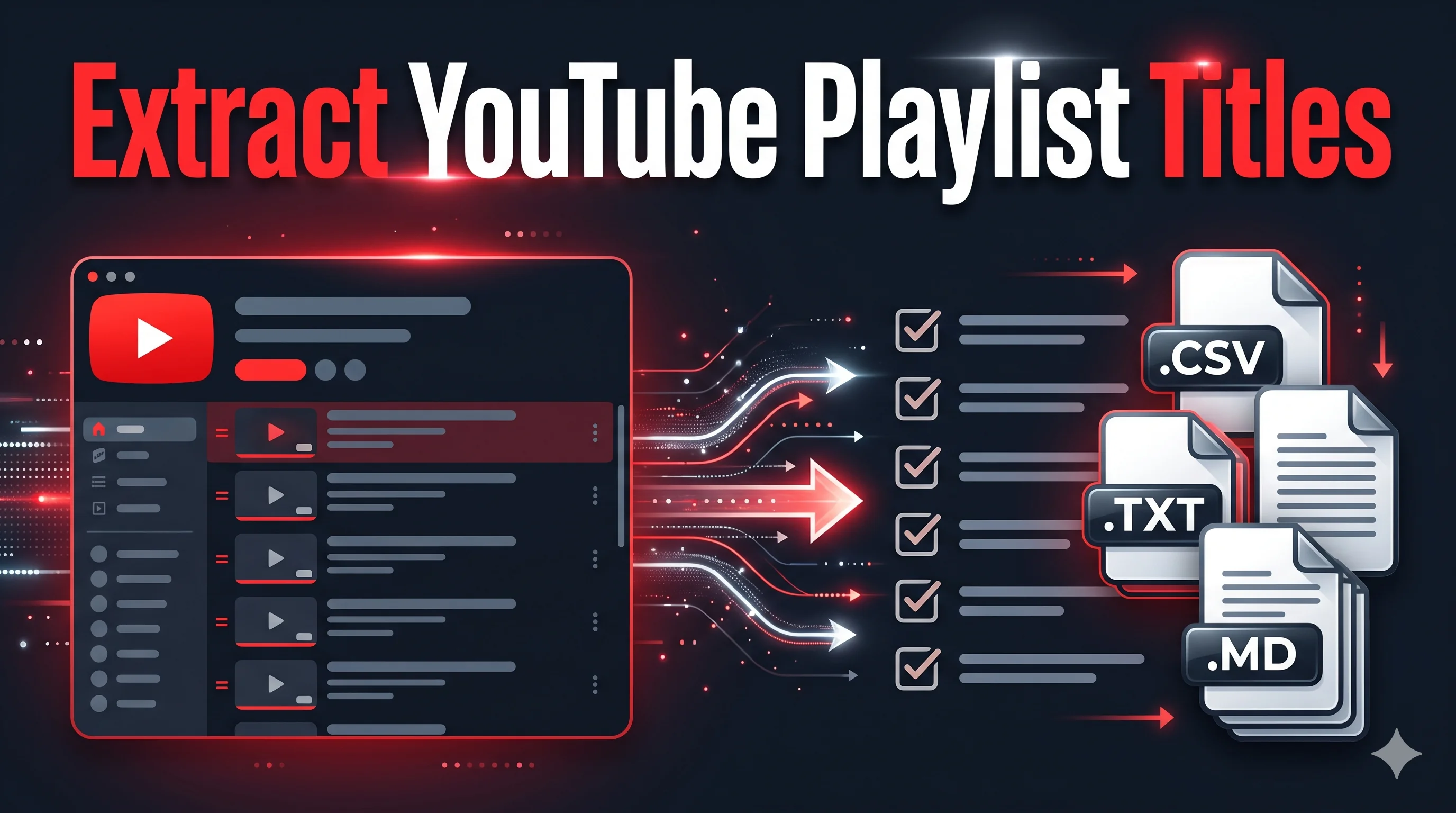
Have you ever found a comprehensive 60-part tutorial series, a university lecture archive, or a 100-episode podcast playlist on YouTube and wanted a clean table of contents? Maybe you wanted to paste those video names into your study notes in Notion, build a reading list in Obsidian, send a syllabus to a colleague, or feed a course outline into ChatGPT to create an exam study schedule.
If you tried doing this directly on YouTube, you probably realized within 30 seconds how frustrating it is. YouTube does not have an "Export Titles" or "Copy Names" button. When you click and drag your cursor across the playlist page to highlight the text, your clipboard grabs everything: channel profile icons, video durations like "18:45", view counts, upload dates like "3 years ago", and thumbnail placeholders.
Worse yet, YouTube uses infinite scrolling. On playlists with more than 30 or 40 videos, the page only loads a tiny batch at a time. To reach video number 150, you have to scroll down repeatedly, wait for the spinner to finish loading, and manually select small chunks while your web browser struggles with memory lag.
Fortunately, you do not have to waste an hour cleaning up messy text lines by hand. Whether you need a dedicated youtube playlist title extractor for a quick one-off project, a fast yt playlist title grabber for notes, or a reliable way to extract video titles from youtube playlist archives containing hundreds of videos, this guide covers the simplest, cleanest methods available.
Why Manual Copying Fails on Long YouTube Playlists
Understanding why manual copying breaks down helps you appreciate why a dedicated title extractor saves so much time:
- Cluttered Metadata Pollution: When you highlight a video on YouTube's interface, you don't just copy the title. You copy the duration badge, the channel avatar, the channel handle, the view count ("342K views"), and the relative age ("11 months ago"). Pasting this into a document leaves you with 5 lines of clutter per video that you have to delete line by line.
- Infinite Scroll and DOM Truncation: YouTube's modern frontend uses virtualized scrolling. As you scroll down a 200-video playlist, the browser actively unloads previous video elements from the top of the Document Object Model (DOM) to preserve memory. That means you literally cannot select all 200 items in one drag-select gesture.
- Truncated Titles on Mobile and Small Screens: On laptops and phones, YouTube cuts off long titles with ellipses ("How to build a full stack web app with..."). If you copy from the page surface, you get the chopped title rather than the full, original video headline.
- Private and Deleted Video Placeholders: Older playlists often contain videos marked "[Deleted video]" or "[Private video]". A proper API extractor identifies these immediately so you know exactly which entries are no longer viewable.
Method 1: Use the YouTube Playlist Title Extractor (Easiest & Fastest)
The cleanest way to grab video names is using our free online YouTube Playlist Title Extractor. It communicates directly with YouTube's official backend API to pull complete, unabbreviated titles in seconds, bypassing browser scroll limits completely.
Step 1: Copy Your Playlist URL
Open YouTube in your browser or mobile app and copy the playlist URL:
- On Desktop: Open the playlist page. Copy the URL from your browser's address bar (it looks like
https://www.youtube.com/playlist?list=PL...) or click the Share arrow beneath the playlist title and click Copy. - On Mobile (iOS or Android): Tap the You tab, tap your playlist, tap the Share button near the top, and select Copy link.
- Privacy Check: Make sure the playlist is set to Public or Unlisted. YouTube blocks external tools from accessing Private playlists.
Step 2: Paste the URL into the Playlist Title Extractor
Go to the YouTube Playlist Title Extractor tool. Paste your link into the search box and click the Extract Titles button.
Step 3: Copy or Download Your Titles
Within 2 to 3 seconds, the tool displays the total video count, playlist author, and the full numbered list of video titles. From here, you have several quick options:
- 1-Click Clipboard Copy: Click the Copy All Titles button. The full list is copied to your clipboard, formatted with one title per line. You can immediately paste it into Notion, Obsidian, Google Docs, Apple Notes, or an email draft.
- Export as Text (.txt): Download a lightweight, universal text file that opens in Notepad, TextEdit, or any code editor.
- Export as Markdown (.md): Perfect for personal knowledge management tools like Obsidian, Notion, or Logseq. Each title is formatted as a clean markdown item or interactive checklist (`- [ ]`).
- Export as Excel (.xlsx) or CSV: If you want to sort, filter, or combine video titles with other data columns in Microsoft Excel or Google Sheets.
This tool also works seamlessly with YouTube Music playlist URLs. If you have an album or playlist on music.youtube.com, simply paste the link to extract track names and artist titles cleanly.
Method 2: Which Export Format Should You Choose?
Depending on what you plan to do with the video titles, choosing the right format saves you extra formatting work later. Here is a practical breakdown:
| Format | Best Used For | Primary Apps & Tools | Key Advantage |
|---|---|---|---|
| Clipboard (Direct Copy) | Immediate pasting into messages, scratchpads, and documents. | Slack, Discord, Google Docs, WhatsApp, Apple Notes. | Fastest method; zero file downloads, clean line-by-line list. |
| Plain Text (.txt) | AI prompts, study syllabi, and minimal offline reading. | ChatGPT, Claude, NotebookLM, Windows Notepad, TextEdit. | Smallest file size; no proprietary software required. |
| Markdown (.md) | Course tracking, personal knowledge bases, and digital wikis. | Obsidian, Notion, Logseq, Bear, GitHub, VS Code. | Interactive checklist syntax (`- [ ] Title`) for study progress. |
| Excel (.xlsx) / CSV | Content planning, sorting by metrics, and multi-column tracking. | Google Sheets, Microsoft Excel, Apple Numbers, Airtable. | Allows sorting titles alongside view counts, durations, and dates. |
| Bookmark HTML | Saving playlist items directly into your web browser bar. | Google Chrome, Safari, Firefox, Microsoft Edge, Brave. | Imports as a native browser folder of clickable bookmarks. |
Method 3: How to Extract Video Titles with a Browser Console Script (Developer Trick)
If you are a developer, programmer, or curious power user on a desktop computer, you can also extract video titles directly inside your browser using the developer console. Here is how it works:
- Open the Playlist on YouTube: Open the playlist page in Google Chrome, Firefox, Safari, or Brave.
- Scroll All the Way Down: Because YouTube uses infinite scrolling, you must manually scroll to the bottom of the page so that all video elements are rendered into the page's HTML DOM. If you don't scroll, the script will only grab the first 20 to 30 titles.
-
Open Developer Tools: Press
F12orCtrl + Shift + Ion Windows (orCmd + Option + Ion Mac) and click on the Console tab. - Paste the JavaScript Snippet: Paste the following code into the console prompt and hit Enter:
// JavaScript snippet to extract loaded video titles
const titles = Array.from(document.querySelectorAll('#video-title'))
  .map(el => el.textContent.trim())
  .filter(title => title.length > 0);

console.log(`Extracted ${titles.length} titles:`);
console.log(titles.join('\n'));

// Copy directly to clipboard (in supported browsers)
if (typeof copy === 'function') {
  copy(titles.join('\n'));
  console.log('Successfully copied all titles to your clipboard!');
}- You must manually scroll through long playlists of 200+ videos, which can freeze your browser tab.
- It does not work on mobile phones, tablets, or the YouTube app.
- YouTube regularly changes their DOM element class names and IDs (
#video-title), which breaks custom scripts without warning.
How to Extract Titles from an Entire YouTube Channel
What if you want a complete list of video titles published by a creator, but they never put their uploads into a single playlist? Or what if you want to analyze only their YouTube Shorts titles or past live stream broadcasts?
Instead of manually finding every individual playlist, you can use our YouTube Channel Title Extractor:
-
Copy the Channel Link: Copy the creator's channel URL or handle (for example:
youtube.com/@mkbhdoryoutube.com/@hubspot). -
Select Content Filter: The tool gives you dedicated sub-filters:
- All Uploads: Grabs every published video across the channel.
- Videos Only: Filters out Shorts and live streams to isolate standard long-form content.
- Shorts Only: Extracts only vertical short-form video titles.
- Live Streams Only: Isolates past live stream replays and broadcasts.
- Extract and Sort: The channel tool handles up to 4,500 uploads in a single query, giving you an exhaustive archive of the creator's video catalog.
Real-World Use Cases: Why People Extract Playlist Titles
Extracting video names in bulk is useful across multiple everyday workflows:
1. Building Course Syllabi and Study Checklists
Many of the best programming courses, language lessons, and college lectures in the world are hosted completely free on YouTube. But watching videos passively is hard to track. By extracting the title list and pasting it into Notion or Obsidian with checkboxes, students turn a casual playlist into a structured, trackable learning roadmap.
2. AI Prompts and Study Guides (ChatGPT, Claude & NotebookLM)
If you want an AI assistant like ChatGPT or Google NotebookLM to build a 4-week study schedule, create test questions, or synthesize key topics from a course, the easiest way is to provide the full list of lesson titles. Instead of typing them out, you copy the entire 50-video playlist title list in 1 second and prompt: "Based on this 50-part course syllabus, create a structured weekly study plan with revision milestones."
3. Competitor Title Research and YouTube SEO
Growing a YouTube channel requires understanding what makes viewers click. Successful creators extract titles from top competitor channels and playlists to analyze patterns:
- Title Length: Are high-performing titles short (under 50 characters) or descriptive?
- Headline Formulas: Do they use questions ("Why..."), listicles ("7 Mistakes..."), or curiosity gaps?
- Keyword Placement: Where do they place their primary target keywords?
4. Podcast and Music Tracklist Cataloging
If you follow a weekly video podcast or DJ set series, extracting titles gives you an instant offline index of every guest name, interview topic, or song title without clicking through each episode's watch page.
Sorting Titles by Views, Duration, and Upload Date
One of the biggest advantages of using our YouTube playlist title extractor online over basic text scrapers is the built-in sorting capability. Before copying or downloading your titles, you can reorder the entire list:
- Sort by Most Viewed: Immediately brings the most popular videos in the series to the top. If you only have time to watch the 5 best videos from an 80-part series, sorting by views pinpoints them instantly.
- Sort by Duration (Longest to Shortest): Helps you separate in-depth masterclasses (2+ hours) from quick 5-minute refresher clips.
- Sort by Date (Oldest or Newest): Lets you follow a course strictly in chronological order or see the latest updates first.
Playlist Title Extractor vs Full Playlist Exporter: Which Do You Need?
We provide two different tools on our site, and users often ask which one fits their use case best:
| Feature | Playlist Title Extractor | Full Playlist Exporter |
|---|---|---|
| Primary Purpose | Quick title-only extraction, clean text lists, study syllabi. | Complete multi-column data backups and deep analytical spreadsheets. |
| Metadata Included | Clean video titles (with optional metric hover tooltips). | Titles, URLs, descriptions, tags, views, likes, comments, dates, durations, thumbnails. |
| Output Speed | Instant (1-2 seconds). | Fast batch processing with deep data enrichment. |
| 1-Click Clipboard Copy | Yes (newline-separated titles). | Yes (multi-column tables). |
| Best Used By | Students, note-takers, researchers, AI prompters. | Data analysts, channel managers, archivists. |
Summary
Manually copying video titles from a large YouTube playlist is tedious, time-consuming, and prone to formatting clutter. Instead of struggling with infinite scroll lag and deleting timestamps line by line, you can get a pristine, numbered list of video titles in a few seconds.
Whether you are creating a course study syllabus in Notion, analyzing video title formats for your own YouTube channel, or building study guides with ChatGPT, our free title extractor provides the fastest, cleanest workflow available.
Ready to extract video titles from your playlist?
Paste any YouTube or YouTube Music playlist URL and copy or export all video titles in seconds.
Frequently Asked Questions
How do I copy only video titles from a YouTube playlist without links or timestamps?
Paste your playlist link into our free YouTube Playlist Title Extractor and click Extract Titles. Once loaded, click the Copy All Titles button. This copies a clean list of video names separated by newlines directly to your clipboard, stripping away all URLs, view counts, durations, and channel badges.
Can I extract video titles from an unlisted YouTube playlist?
Yes. As long as you have the direct link to an unlisted playlist, our tool can read and extract every video title. However, fully private playlists cannot be accessed by external tools because YouTube blocks public API access to them.
Is there a limit on how many video titles I can extract at once?
Our tool supports extracting up to 5,000 video titles per playlist, which is YouTube's official maximum playlist capacity. For entire YouTube channels, you can extract up to 4,500 video titles in one run using our YouTube Channel Title Extractor.
Can I extract video titles from a YouTube channel without a playlist?
Yes. If you want all video titles published by a specific creator or channel, use our YouTube Channel Title Extractor. Paste any channel handle (@username), channel URL, or channel ID, and you can extract titles for all uploads, or filter specifically by long-form videos, Shorts, or live streams.
Which file formats can I download my extracted video titles in?
You can copy titles directly to your clipboard or download them as plain Text (.txt), Markdown (.md with checklist format), CSV, Excel (.xlsx), or HTML browser bookmarks.
Do I need to install a browser extension or provide my YouTube login?
No. The tool is 100% web-based. You never need to install extensions, write scripts, or log in with your Google account. Simply paste the playlist URL and extract your titles immediately.