How to Export YouTube Music Playlists to CSV, Excel, or Text
Published on: 13th October, 2026Quick Summary: Export Your Music Playlist in 3 Steps
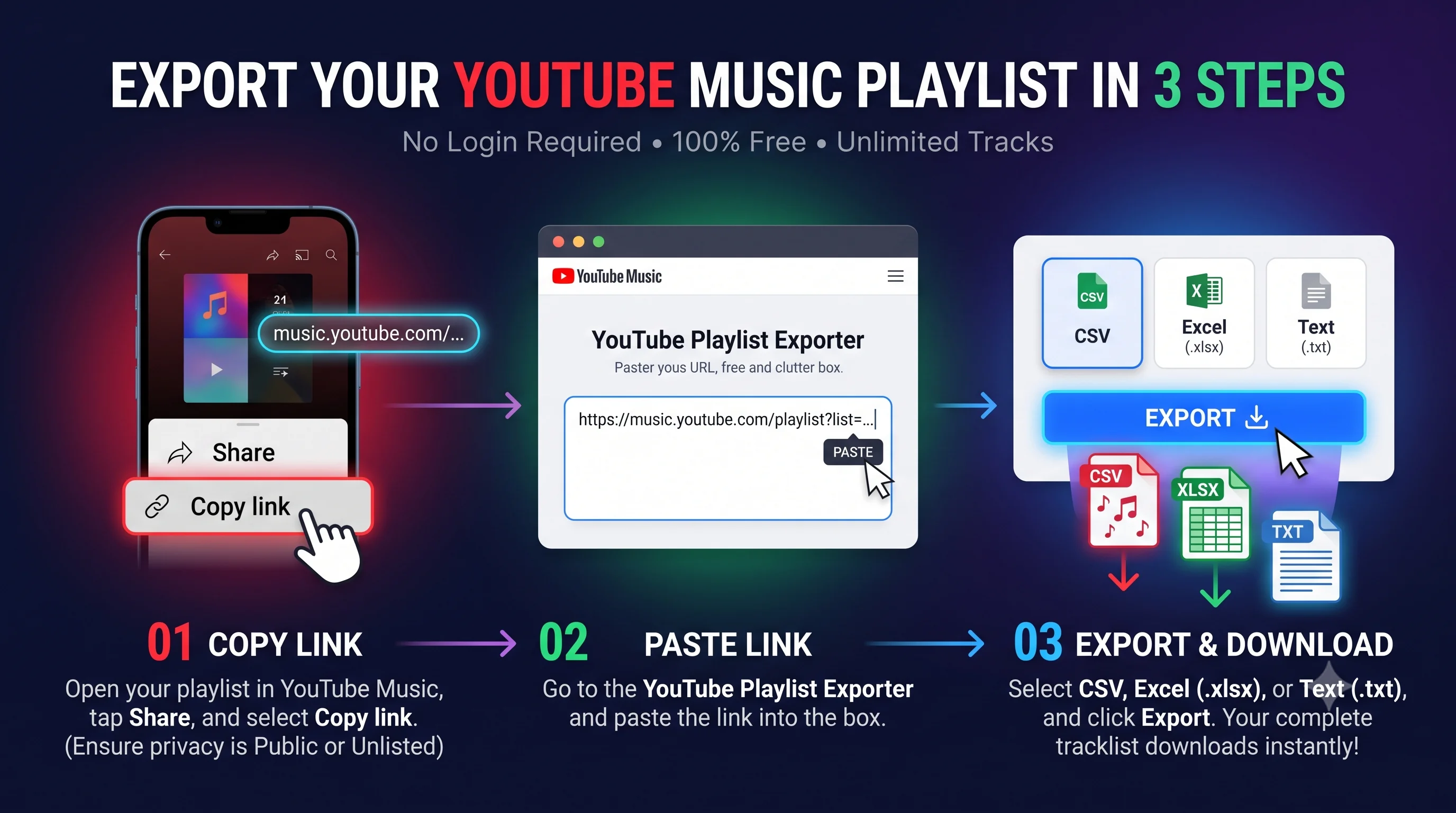
YouTube Music does not offer a download button for your playlist data. Here is the easiest way to get your entire tracklist into a spreadsheet or text file:
- Step 1: Open YouTube Music, open your playlist, tap Share, and select Copy link. Make sure your playlist privacy is set to Public or Unlisted.
- Step 2: Go to our free YouTube Playlist Exporter and paste the link into the box.
- Step 3: Select CSV, Excel (.xlsx), or Text (.txt), and click Export. Your complete tracklist downloads instantly with all song names, artists, durations, and links.
If you listen to music on YouTube Music, you probably know how easy it is to build giant playlists over time. You add your favorite albums, rare concert recordings, acoustic covers, and workout mixes. Before you know it, you have a playlist with hundreds or even thousands of tracks.
The problem starts when you want to do something useful with that playlist outside the app. What if you want to switch to Spotify or Apple Music? What if you want a simple text list of your songs to share with a friend? Or what if you just want an offline spreadsheet backup so you never lose track of rare songs?
If you search inside YouTube Music or standard YouTube settings, you will not find any export button. Google lets you download raw account archives through Google Takeout, but that service gives you messy JSON files buried inside huge zip archives that take hours to generate and are difficult to read.
Meanwhile, third-party transfer services like Soundiiz and TuneMyMusic constantly push paid subscriptions. They cap free accounts at 200 tracks and force you to connect your Google account credentials to their servers.
You do not need to pay monthly fees or hand over your account login to back up your music. In this guide, you will learn how to export youtube music playlist tracks to CSV, Excel, or plain text for free, without any song limits or account signups.
Why Backing Up Your YouTube Music Playlist Is Important
Most people do not think about backing up their music until songs start disappearing from their library. Streaming platforms feel permanent, but your playlists can change without warning. Here are the three main reasons having a local spreadsheet or text backup makes sense:
- Songs Get Deleted and Grayed Out: Music licensing deals expire all the time. Record labels renegotiate catalog rights, artists switch distributors, or regional blocks get applied. When that happens in YouTube Music, the track turns gray or vanishes. YouTube does not notify you, and it rarely shows you the original song title once it is gone. If you have an exported spreadsheet, you always have a permanent record of the exact artist and song title.
- Switching Between Streaming Services: If you decide to try Spotify, Apple Music, Tidal, or Deezer, moving your library by hand is exhausting. Retyping 500 songs one by one can take hours. Having your youtube music playlist to csv file makes migration much faster, because most playlist conversion tools accept spreadsheet uploads.
- Sharing and Personal Organization: A spreadsheet lets you sort your music by duration, search for specific artists quickly, count how many songs you have from a certain creator, or print a clean tracklist for events, road trips, and DJ sets.
The Problem with Paid Transfer Apps (Soundiiz, TuneMyMusic, etc.)
When searching for a youtube music playlist exporter or looking for a straightforward youtube music export playlist method, the first results on Google are usually paid transfer platforms. While those services can work, they come with big limitations that frustrate users:
- Strict Track Limits on Free Plans: Soundiiz restricts free users to only 200 tracks per playlist and allows converting only one playlist at a time. TuneMyMusic limits free accounts to 500 total tracks across your entire library. If you have an 800-song playlist, they cut off your data halfway through.
- They Require Your Google Account Login: These platforms ask for full OAuth permissions to view and manage your YouTube account. Many users simply do not want third-party companies accessing their private account data.
- Aggressive Subscription Upsells: They try to lock you into monthly plans ranging from $4.50 to $10.00 per month just to download a simple list of songs you already curated yourself.
Our tool operates differently. It is 100% free, runs directly in your web browser, never asks for your password or Google login, and does not cap the number of tracks you can export.
How YouTube Music Links Work
Before exporting, it helps to understand a helpful trick about how YouTube Music works behind the scenes.
YouTube Music (at music.youtube.com) and regular YouTube (at youtube.com) share the exact same underlying database. When you create a playlist in YouTube Music, it receives a standard playlist ID starting with letters like PL.
For example, if your playlist URL looks like this:
That exact same playlist also exists on regular YouTube at:
Our exporter tool understands both links automatically. You can paste the link straight from the YouTube Music app or web player, and the tool will detect the playlist ID and extract all the track information.
Step-by-Step: How to Export YouTube Music Playlist to CSV or Excel
Exporting your music takes less than a minute. Follow these simple steps on any phone, tablet, or desktop computer:
Step 1: Copy the Playlist Link
First, get the share link for your playlist:
- On Desktop (Web Browser): Open YouTube Music at music.youtube.com. Click on your playlist in the sidebar or Library. Copy the web address from your browser address bar. Alternatively, click the three-dot menu icon next to the playlist title, select Share, and click Copy link.
- On iPhone or Android (App): Open the YouTube Music app. Tap the Library tab at the bottom right. Tap Playlists and open the playlist you want to backup. Tap the Share arrow (or the three dots menu) under the playlist cover, and tap Copy link.
Step 2: Check the Privacy Setting
Make sure the playlist is not set to Private. In the YouTube Music app or desktop site, click the small pencil icon (Edit playlist). Look at the Privacy dropdown. If it says "Private", change it to Unlisted and save. Unlisted means nobody can find your playlist by searching Google or YouTube, but anyone with the link can view it.
Step 3: Open the Exporter and Paste Your Link
Open our free Export YouTube Playlist homepage. Paste your copied link into the main input box.
Step 4: Select Your Export Format
Under the search box, pick the format that fits your needs:
- CSV (.csv): Choose this if you want a universal spreadsheet file. It opens easily in Google Sheets, LibreOffice, Apple Numbers, and music transfer tools.
- Excel (.xlsx): Choose this if you want to export youtube music playlist to excel. The Excel format preserves song formatting, keeps URLs clickable, and avoids character display issues for international song titles.
- Text (.txt): Choose this if you want a simple text file list of songs that you can read, copy, or print without spreadsheet software.
Step 5: Click Export
Click the blue Export button. The tool communicates with YouTube, collects every track in your playlist, formats the metadata into your chosen file type, and starts the download immediately to your downloads folder.
What Information Is Included in Your Exported File?
When you open your downloaded CSV or Excel file, you will find your music organized into neat columns. Here is what you get for every single song:
| Column Name | Description | Example Value |
|---|---|---|
| Video No | The track number in the playlist so you can keep the original track order. | 1, 2, 3... |
| Title | The full name of the song or track. | Blinding Lights |
| Channel Name | The artist, band, or channel that uploaded the audio. | The Weeknd |
| Duration | The length of the track formatted in minutes and seconds. | 03:20 |
| Video URL | The direct, clickable link to play that exact track on YouTube. | https://www.youtube.com/watch?v=... |
| Views & Likes | Current view count and like count for that recording. | 2,500,000 views |
| Uploaded Time | The date the video or official audio was published. | 2020-01-21 |
| Thumbnail URL | Direct link to the album artwork or video thumbnail. | https://i.ytimg.com/... |
Having the direct video URL for each track is especially valuable. Even if a track gets removed from your playlist later on, you still have the exact link in your spreadsheet, making it easy to see which video it was.
How to Convert a YouTube Music Playlist to Plain Text (TXT)
Spreadsheets are great for data analysis, but sometimes you just want a clean reading list. Many people search for youtube music playlist to text because they want to:
- Paste their favorite tracklist into note-taking apps like Apple Notes, Google Keep, or Notion.
- Share a music recommendation list with friends in a chat message or email.
- Feed a list of songs into ChatGPT, Claude, or Google NotebookLM to ask for new artist recommendations based on their taste.
- Print out a physical tracklist for an event or party.
To do this, select Text (.txt) on the homepage before clicking Export. The tool will generate a clean document with every track listed line by line. You can open this file with Notepad on Windows, TextEdit on Mac, or any mobile text reader.
If you only need the raw web links for every track, you can also use our dedicated YouTube Playlist Link Extractor to get a plain list of URLs ready for pasting.
Other Supported Export Formats (Markdown, JSON, HTML, SQLite, and More)
While CSV, Excel, and Text are the most common formats for music spreadsheets and tracklists, our tool supports several other export formats. You can choose any of these on the homepage depending on how you plan to use your music data:
- Markdown (.md): If you keep personal notes in apps like Obsidian, Notion, Logseq, or Bear, Markdown is a great choice. It organizes your songs into clean headings, bulleted lists, and clickable links. You can also upload Markdown files into AI tools like Google NotebookLM, ChatGPT, or Claude to ask for song analysis, genre breakdowns, or recommendations.
- Bookmark HTML: This option generates an official browser bookmark file. When you import this file into Google Chrome, Safari, Firefox, or Microsoft Edge, your browser creates a dedicated bookmarks folder filled with every song in your playlist. You can open and listen to your favorite tracks directly from your bookmarks bar.
- JSON (.json): Built for programmers and web developers. If you are building a music app, running data scripts in Python, or feeding playlist information into a Discord bot, JSON gives you structured key-value data with no messy parsing required.
- HTML (.html): Generates a standalone web page containing an interactive, searchable table of all your songs. You can double-click this file on any computer and search through your playlist completely offline in any web browser without needing an internet connection.
- SQLite (.db): If you like working with databases, this format packs the full playlist metadata into a local SQLite database file. You can run SQL queries to calculate total play times, filter by artist, or join with your other music archives.
- PDF (.pdf) and Word (.docx): Useful when you need a formatted, printable document of your tracklist for events, road trips, rehearsals, or lesson plans.
- XML and YAML: Standard structured formats for system administrators and automation pipelines.
How to Migrate Your YouTube Music Playlist to Spotify or Apple Music
If your goal is switching from YouTube Music to another streaming app, your exported CSV file is the key to doing it without paying for premium subscriptions.
Here is how the migration workflow works:
- Export Your Playlist to CSV: Use our tool to download your playlist as a CSV file.
- Clean Up the Columns (Optional): Open the CSV in Google Sheets or Excel. Most music transfer tools only need two pieces of information to match songs: the Title (song name) and the Channel Name (artist name). You can keep those two columns and delete the extra columns if you wish.
- Use File Upload on Transfer Sites: Instead of connecting your YouTube account directly, look for transfer tools that support "Upload CSV" or "Upload File". Tools like TuneMyMusic have a file upload option that lets you upload a CSV without connecting your Google account. Another great free option for Spotify users is Spotlistr, an open web tool that takes a text or CSV list of song titles and artists and creates a Spotify playlist directly in your Spotify account.
- Review Matches: The importer will match each song title and artist against Spotify or Apple Music's catalog. You can review any tracks that were not found and substitute alternative versions.
This method keeps your Google account secure because you never give third-party websites your YouTube password or account permissions.
Helpful Tips and Troubleshooting Common Issues
Here are answers to a few practical questions and common edge cases that people encounter when exporting YouTube Music playlists:
1. How to Export Your "Liked Music" from YouTube Music
In YouTube Music, your liked songs live inside an automatic playlist called "Liked Music". If you check the URL, it usually contains list=LM.
Because "Liked Music" is a private personal list tied to your account cookies, YouTube does not make it accessible via a public URL. However, there is a quick 15-second workaround:
- Open YouTube Music and go to your Liked Music playlist.
- Click the three dots menu near the playlist title and select Add to playlist.
- Click New playlist, name it something like "Liked Songs Backup", and set the privacy to Unlisted.
- Copy the link of that new playlist and paste it into our exporter. All your liked songs will export properly.
2. What Happens to Special Characters and Foreign Language Titles?
Music tracks often contain accents, umlauts, or non-English alphabets (such as French, Spanish, German, Japanese Kanji, or Korean Hangul). For example, artists like Björk, Motörhead, or Rosalía.
If you download a CSV and double-click to open it in older versions of Microsoft Excel, Excel sometimes displays weird symbols like é instead of é. This happens because old Excel versions try to open CSV files using ASCII encoding instead of UTF-8.
Two Easy Fixes:
- Best Option: On our tool homepage, select Excel (.xlsx) instead of CSV. The XLSX format natively embeds UTF-8 encoding, so all international characters display properly when opened in Excel.
- If using CSV: In Excel, open a blank sheet, click the Data tab, click From Text/CSV, and make sure the file origin is set to 65001: Unicode (UTF-8).
3. Does This Download the Actual MP3 Audio Files?
No. Our tool is a metadata and playlist data exporter. It downloads track information (song titles, artist names, video links, durations, and play counts) into spreadsheet and text files. It does not download audio or video media files, which keeps the service compliant with YouTube terms of service.
Frequently Asked Questions
Is there any track limit when exporting a YouTube Music playlist?
No. Whether your playlist has 15 songs or 2,000 songs, our exporter processes the full playlist. Unlike third-party apps that cut off free accounts at 200 tracks, you can export your entire collection at once.
Do I need to sign in with my Google or YouTube account?
No. You never have to share your Google login, email, or password. The tool only needs the public or unlisted URL of the playlist to read the track metadata.
Can I export a playlist on my mobile phone?
Yes. Our website is fully mobile-friendly. You can copy the link from the YouTube Music app on iPhone or Android, paste it into your mobile browser (Safari, Chrome, Firefox), and download the CSV or text file straight to your phone.
Can I sort the songs before downloading?
Yes. On the homepage, you can sort your playlist by track duration, total views, upload date, or alphabetical title before exporting. This helps you organize your library exactly how you want it.
Summary
Your music playlists represent hours of listening and discovery. Relying solely on streaming platforms leaves your collection exposed to sudden licensing removals, deleted videos, and region locks.
With our free exporter, you can back up your favorite YouTube Music playlists to CSV, Excel, or plain text in seconds. You keep complete ownership of your song lists, you avoid monthly subscription fees, and you can easily move your music to any other app whenever you want.
Ready to back up your music?
Copy your YouTube Music playlist link and download your free spreadsheet or text file right now.