YouTube Tag Extractor
Extract YouTube video tag and YouTube shorts tag for free with our YouTube Tag Extractor tool! No signup, no daily limits - just enter the URL and get YouTube tag in a click. QUICK, EASY, AND FREE FOREVER!
How to Extract YouTube Video or Shorts Tags for Free?
-
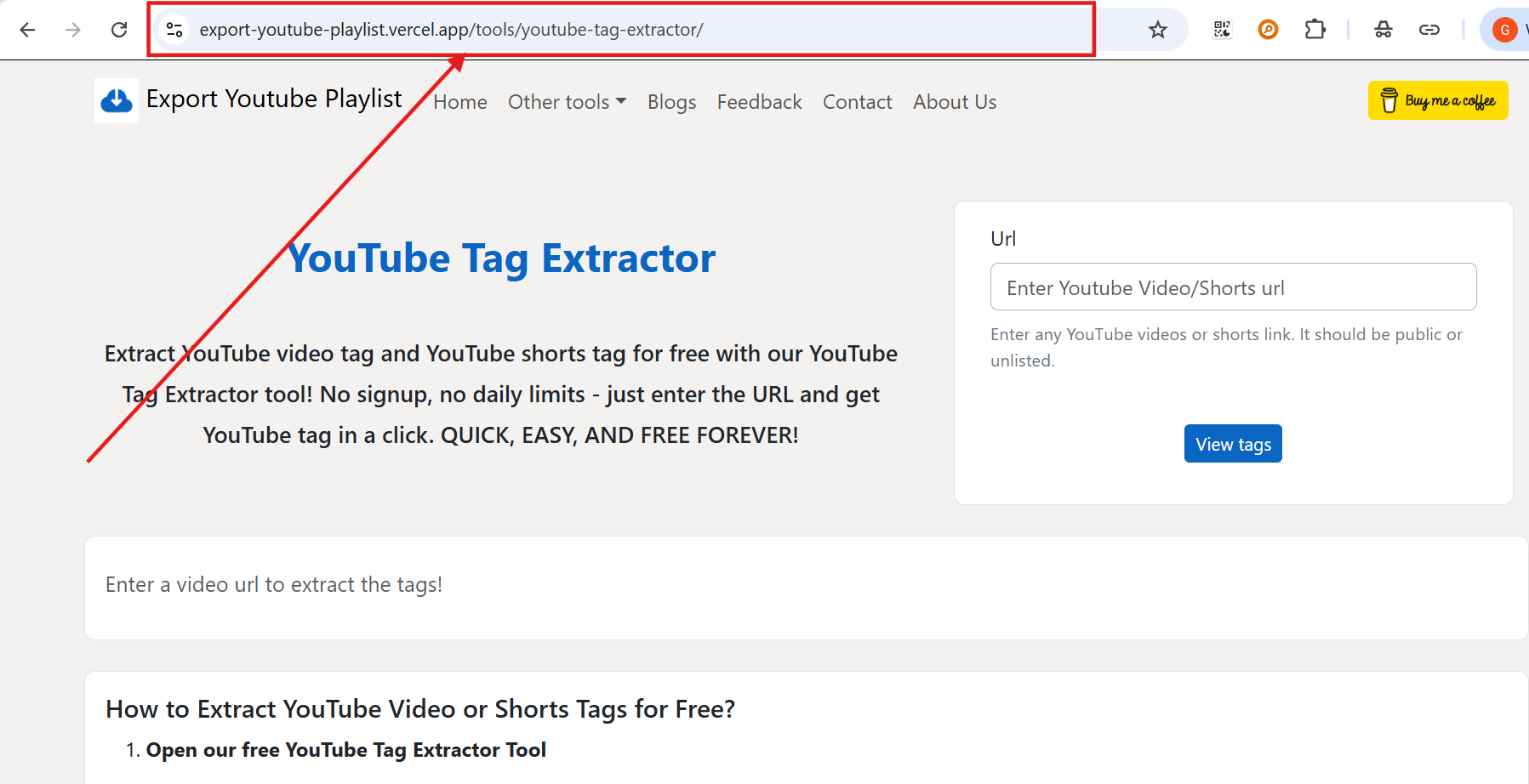
Open our free YouTube Tag Extractor Tool
Head over to our YouTube Tag Extractor tool. No sign up needed. Just open the page directly in your browser and you are ready to go. The page loads fast and works on mobile, tablet, and desktop - so no worries if you are checking this on your phone.
-
Copy the YouTube Video or Shorts URL
Go to YouTube (or YouTube Shorts) and open the video whose tags you want to see. Copy the URL from your browser's address bar - it usually looks something like
https://www.youtube.com/watch?v=XXXXXXXXor a Shorts link likehttps://www.youtube.com/shorts/XXXXXXXX. Both formats work fine with our tool. Just make sure the video is either Public or Unlisted - private videos cannot be accessed via the offcial YouTube API.
-
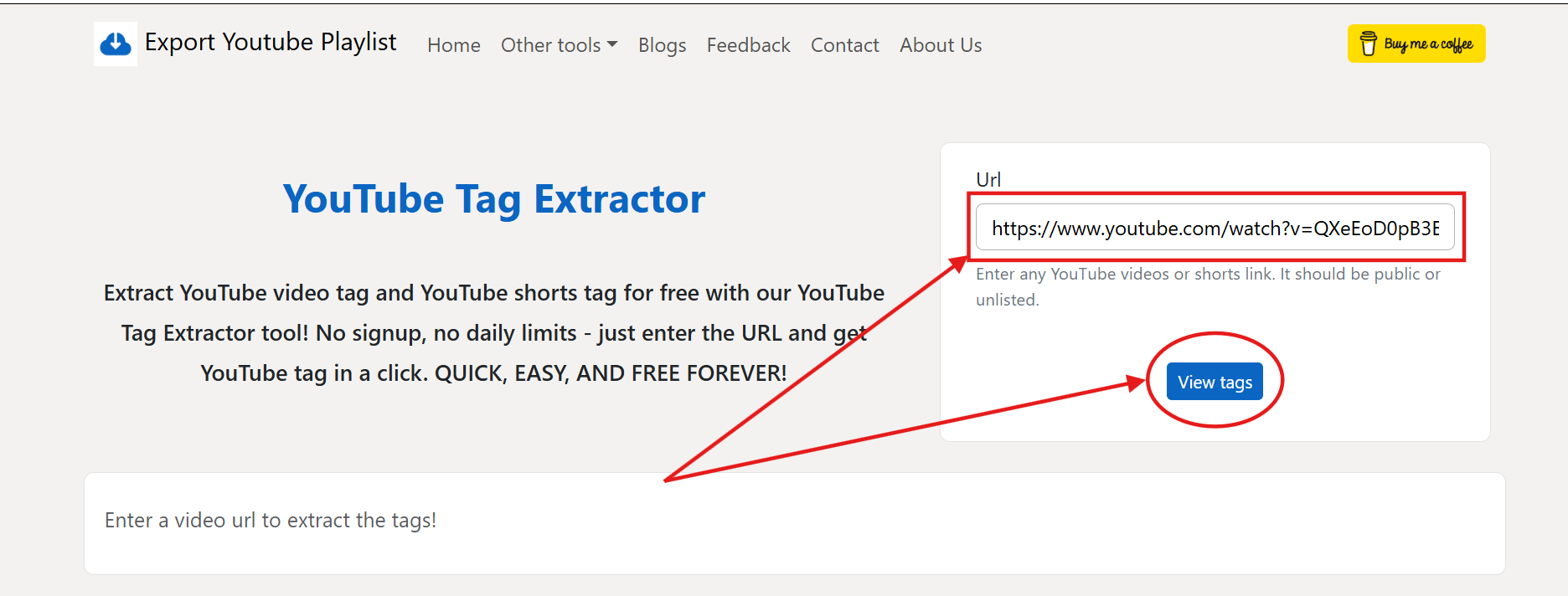
Paste the URL and Click "View Tags"
Come back to our tool, paste the copied URL into the input field, and hit the "View Tags" button. You will notice the button changes to a loading state - that just means the tool is talking to YouTube's API in the background to fetch the data. It usually takes only a second or two. Once done, the tags will appear right below on the same page.
-
View Actual Tags and Tags from Description
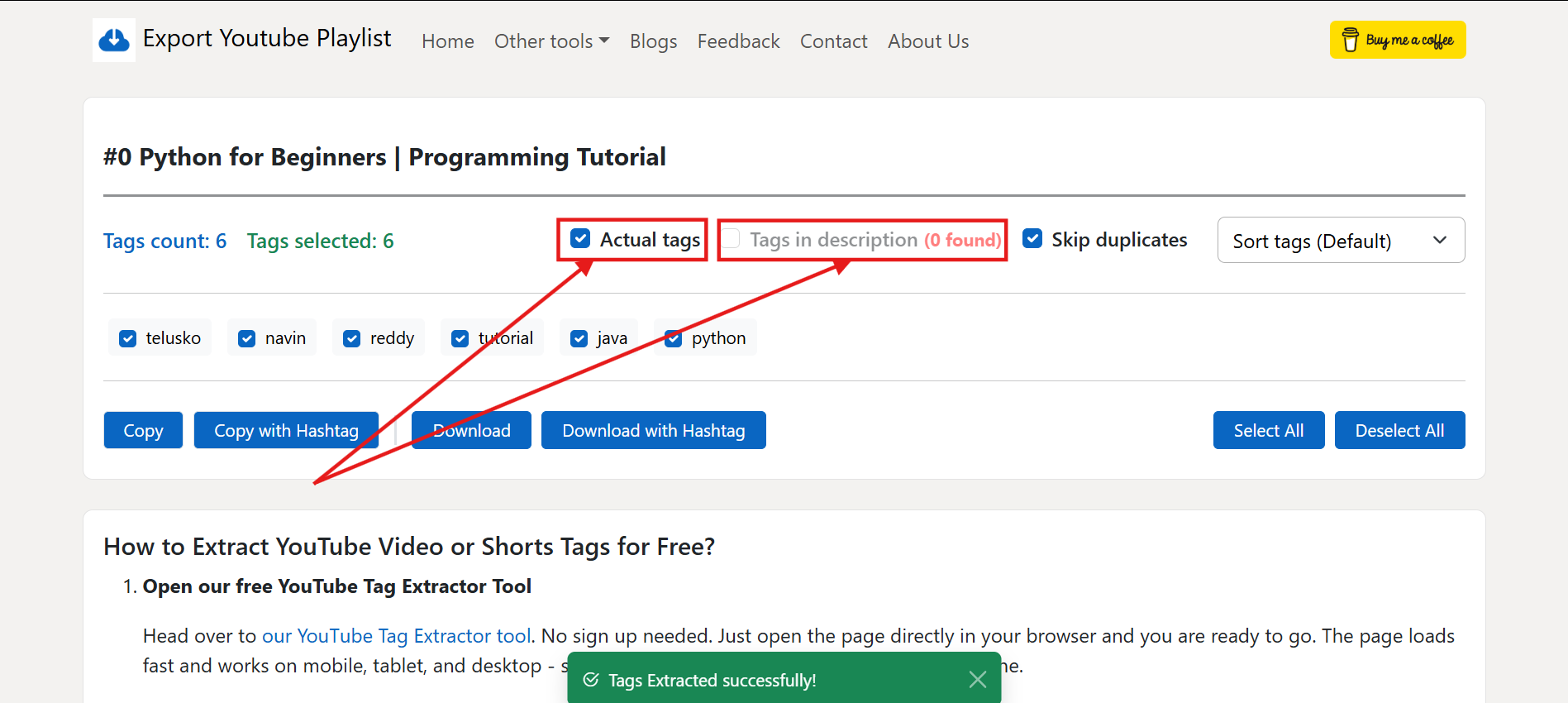
Here is where it gets interesting. YouTube has two kinds of tags - the hidden video tags that a creator adds while uploading (which viewers normally cannot see), and the hashtags inside the video description (those
#WordsLikeThisyou see at the bottom of descriptions). Our tool fetches both. By default, only the Actual tags are shown. If you want to see the description hashtags too, just tick the "Tags in description" checkbox. If that video has no hashtags in the description, the checkbox will be greyed out with a (0 found) label so you know exactly what's happening.You will also notice that description tags look visually different - they have a darker background compared to the light grey actual tags. This makes it easy to tell them apart at a glance without any confusion.
-
Handle Duplicate Tags with "Skip Duplicates"
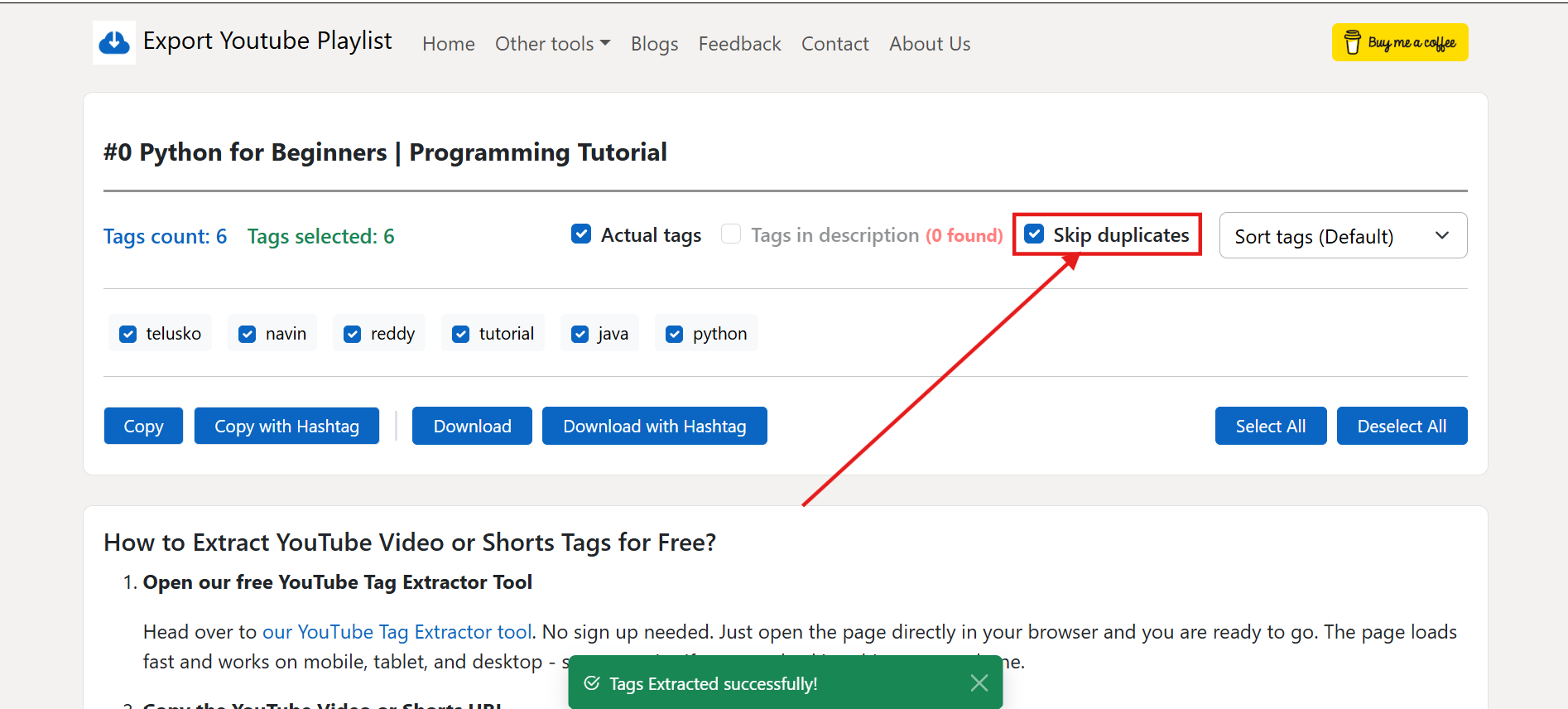
Sometimes a creator adds the same tag both in the hidden video tags section and again as a hashtag in the description - happens more often than you'd think. By default, the "Skip duplicates" option is enabled, so if a tag appears in both places, it will only show up once (under Actual tags). But if you want to see all of them, including both copies, simply uncheck "Skip duplicates" and the description's version will also appear - styled differently so you know which is which.
-
Sort Tags the Way You Like
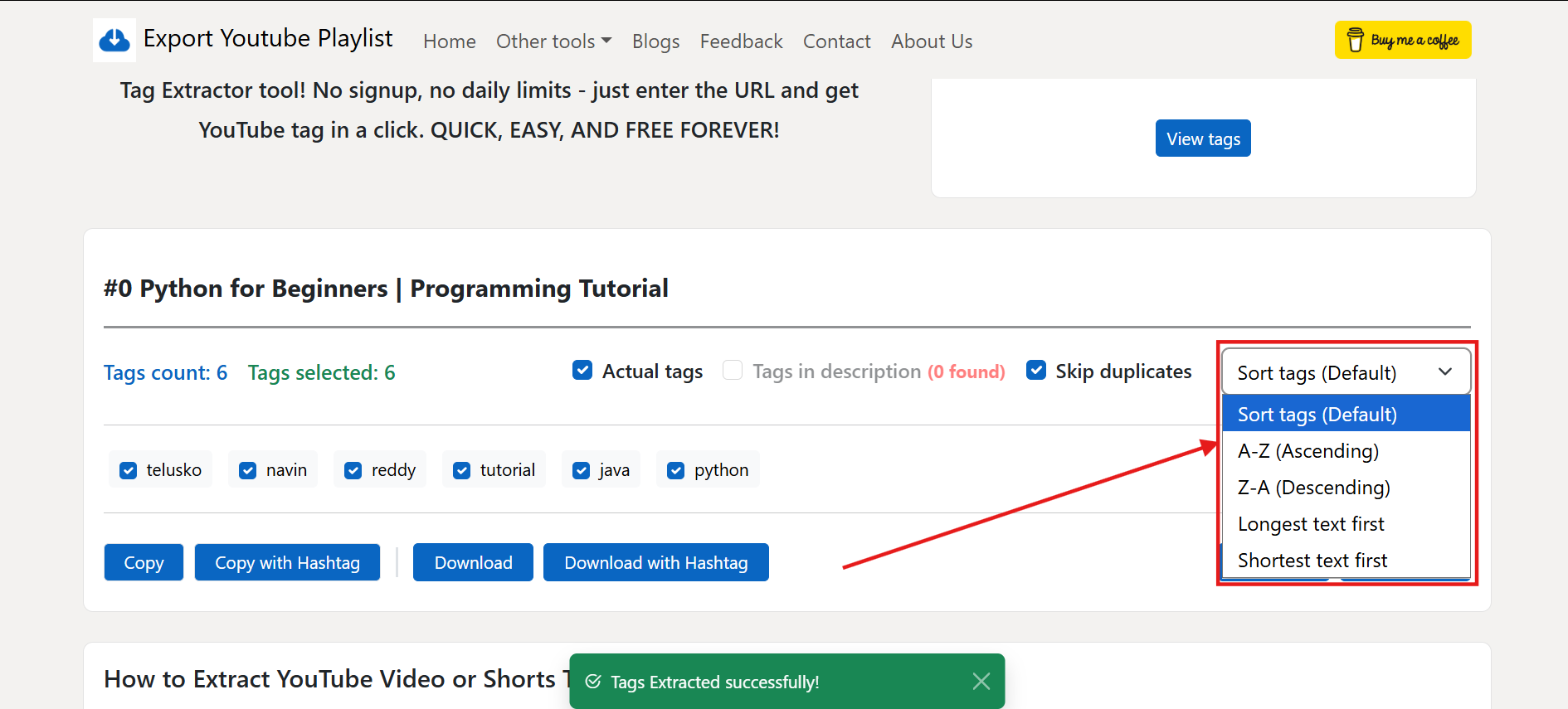
If you are dealing with a video that has 30-40 tags, scrolling through them randomly can get annoying quickly. Use the Sort dropdown on the right side to rearrange them the way you prefer. You can sort alphabetically from A to Z or Z to A, or go by tag length - longest first if you want the descriptive ones at the top, shortest first if you prefer concise ones. Sorting works on whatever tags are currently visible, so it respects your Actual / Description filter choices.
-
Select Individual Tags or Use "Select All" / "Deselect All"
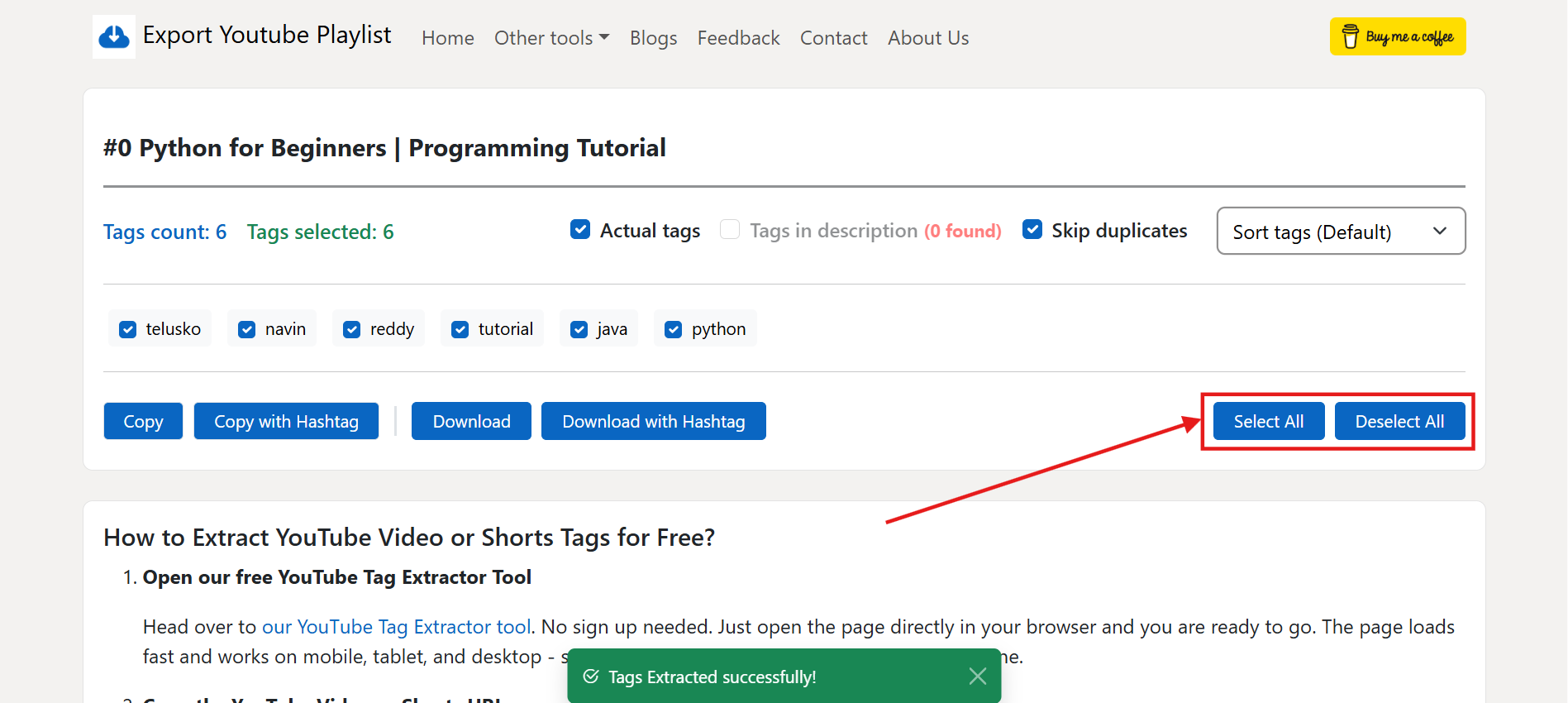
Every tag has a small checkbox next to it. You can click individual tags to check or uncheck them based on what you need. If you want everything selected quickly, click "Select All". Made a mistake or want to start fresh? Hit "Deselect All" to uncheck everything in one shot. The tag counts at the top - Tags count and Tags selected - update in real time so you always know how many you are working with. One thing worth noting: if you switch between Actual tags and Description tags while some are already checked, your selections are preserved wherever possible - the tool remembers what you had picked.
-
Copy or Download the Tags in Your Preferred Format
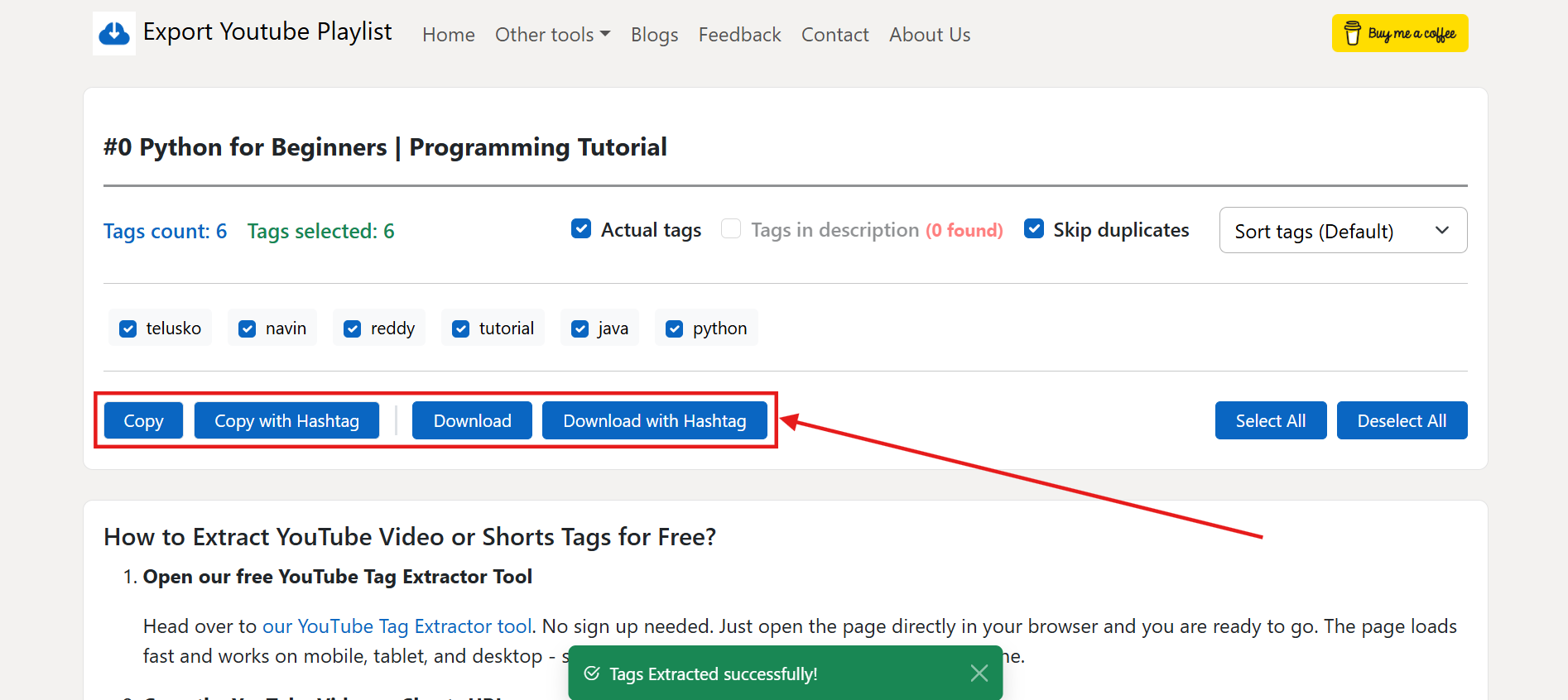
Once you have selected the tags you need, it is time to actually use them. You have four action buttons to choose from:
- Copy - Copies only the selected tags as plain text (e.g.,
gaming, tutorial, howto), separated by commas. Good for pasting directly into YouTube's tag field. - Copy with Hashtag - Same thing, but each tag gets a # in front (e.g.,
#gaming, #tutorial, #howto). Handy when you want to put them in a description or a social media post. - Download - Downloads a
.txtfile with each selected tag on a new line, without the hashtag. Clean and easy to store or share. - Download with Hashtag - Same as above but with the # added to every tag. Good if you are building a hashtag list for Instagram, LinkedIn, or for description templates.
All these actions work only on the tags you have checked - so you have full control over exactly what gets copied or downloaded.
- Copy - Copies only the selected tags as plain text (e.g.,
Frequently Asked Questions
-
Do I need to sign up or pay to use this tool?
Not at all. No account creation, no subscription, no hidden charges - our YouTube Tag Extractor is completely free to use. You can extract tags from as many videos as you want, as many times as you want. It is free forever.
-
Why can't I see tags for a video I just searched?
A few things could cause this. First, the video might be private - private videos are not accessible through YouTube's API, so the tool cannot fetch their data. Make sure the video is either Public or Unlisted. Second, some videos genuinely have no tags added by the creator - in that case the tool will clearly show "No tags found" rather than leaving you guessing.
-
What is the difference between Actual tags and Tags in description?
Actual tags are the hidden metadata tags a creator adds while uploading - viewers cannot normally see these on YouTube, but they influence search rankings. Tags in description are the visible hashtags (like
#shortsor#cricket) that creators put directly inside the video description. Both are valuable for research, but they serve different purposes. Our tool extracts both so you get the complete picture. -
Can I copy the tags with the # symbol?
Yes, absolutely. You get two copy options - one without the # (plain tags) and one with the # prefix added to every tag. Use whichever format makes sense for what you are doing. Plain tags work best for YouTube's own tag field, while hashtag format is better for descriptions and social posts.
-
Does this work for YouTube Shorts too?
Yes, it works for both regular YouTube videos and YouTube Shorts. Just paste the Shorts URL and the tool will handle the rest exactly the same way.
-
My selections disappeared after I toggled a filter - is that a bug?
No, it is by design. When you toggle filters (like showing/hiding description tags or changing the sort order), the tool re-renders the visible tags. It does its best to restore your selections for tags that are still visible. However, if a tag gets hidden because you unchecked its source filter, its selection state is cleared. Toggle the filter back on and the tags will reappear - but you may need to reselect them.